Estimating

Better Reno is estimating first: detailed quotes from your own prices, fast.

Rates and items: your price list

Your items (labour, materials, supply and install) with cost, markup and price, each with its trade and unit; tasks that chain items together (a shower is waterproofing, tiling, fit-off…); trades; units; and where each item is used. Import and export the whole list as a spreadsheet.

Why it helps: Price once, use everywhere. Changing a price never changes a quote already made.

In Better Reno: Side menu → Rates and items

Guide: “Your price list” (Guides in the menu, or the ? on the screen)

Better Reno takes care of

  • “Used in” shows every task, template, block and quick quote an item is in, and warns before you archive one that is used.
  • A change of price never touches a quote already made; open quotes show which lines have a newer price, to update or keep.
  • Each item can take its quantity from a take-off figure, exact or rounded up, every time it goes on a quote.
  • Keeps each item’s product link and picture, and fills the name, brand, code and price from the link.
  • Imports and exports the whole price list as a spreadsheet.
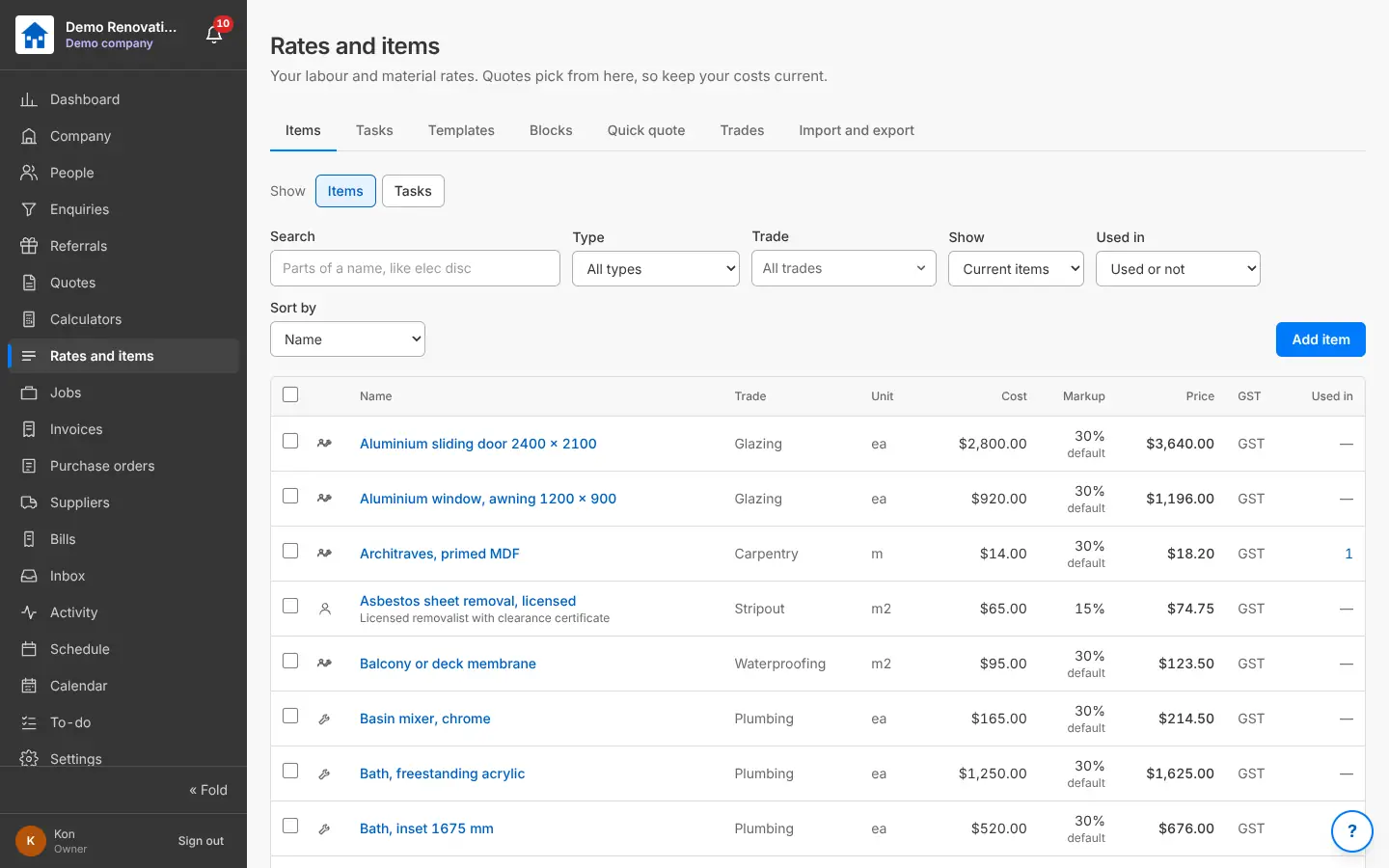
The price list: items with trade, unit, cost, markup, price and used in
Your price list: items and tasks with your costs and markups.

The quote builder

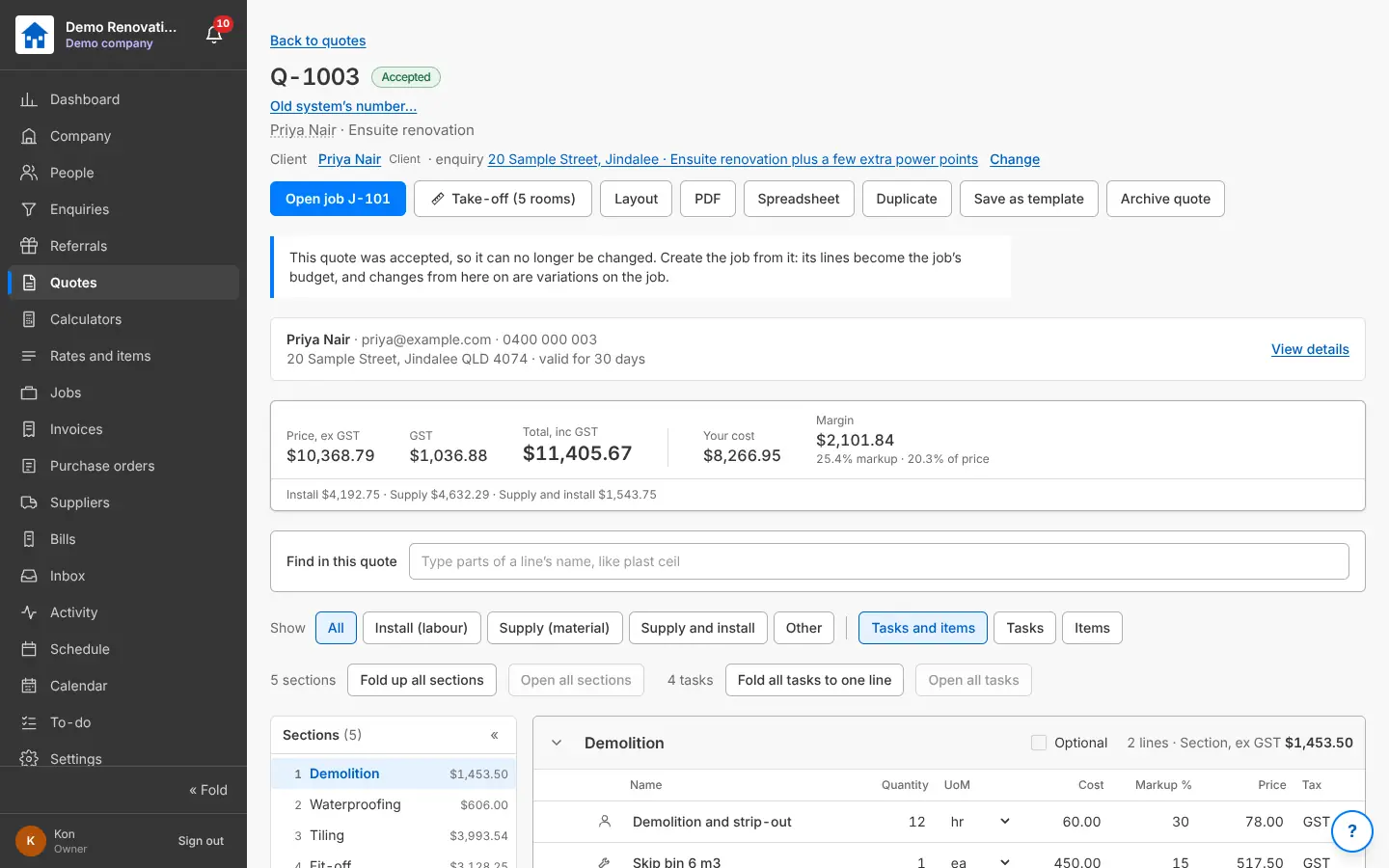
Sections and lines from your price list, tasks and blocks; supply and install split; optional sections; cost, markup, price and margin on every line and the whole quote; find inside the quote; tick lines to copy, move or change together; drag to reorder; Undo with Ctrl+Z. Layouts for the PDF (what the client sees, font size, the logo), and the quote as a spreadsheet in and out.

Why it helps: Quotes as detailed as you like, built in minutes, and you always know the margin.

In Better Reno: Side menu → Quotes · Settings → Quotes, orders and invoices

Guide: “Building a quote” (Guides in the menu, or the ? on the screen)

Better Reno takes care of

  • Quantities come straight from the take-off, and when the take-off changes the quote shows exactly which lines to update (one click for all).
  • Every quote line and the take-off measurement it uses are linked both ways, with a badge on each, so you see what is used where.
  • Money to the cent with GST worked out once on the total: no rounding drift between the lines and the total.
  • Undo up to 20 steps (Ctrl+Z); tick lines to copy, move or change together; drag lines and sections; Ctrl+drag copies.
  • Hides your costs and margins from anyone whose role does not include them, on the screen, the PDF and the spreadsheet.
  • Saves a task you built on the quote back to the price list, as a new task or over the old one.
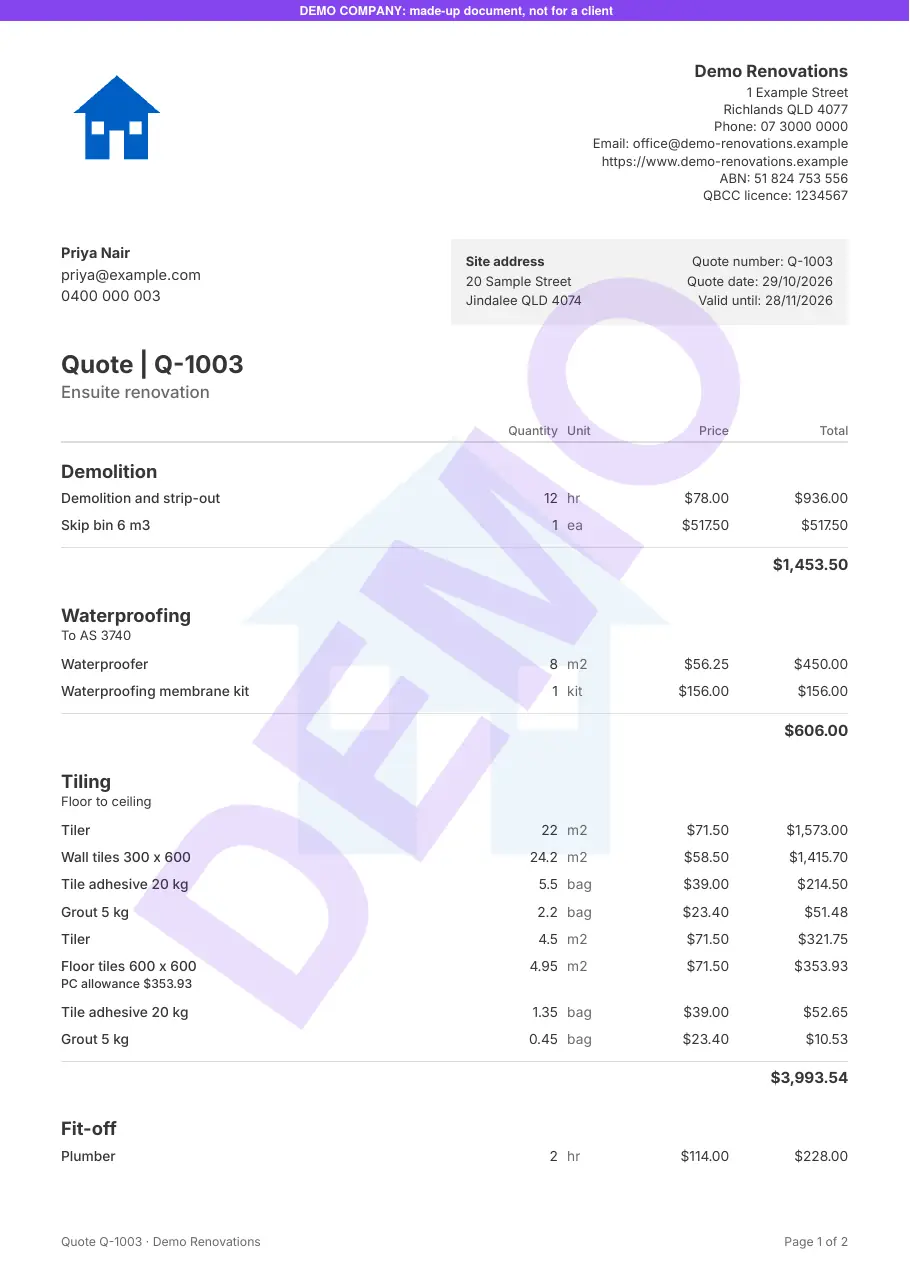
  • Says DRAFT across the PDF until the quote is sent, with your logo, layout and font size.
  • Stays quick on a quote of 1,000 lines.
A quote: price, GST, total, your cost and margin, the sections list and lines
A quote: sections down the side, lines with cost, markup and price.
The first page of a quote PDF with the logo, the client and the priced sections
The quote as a PDF (this one says DEMO across it).

Templates and blocks

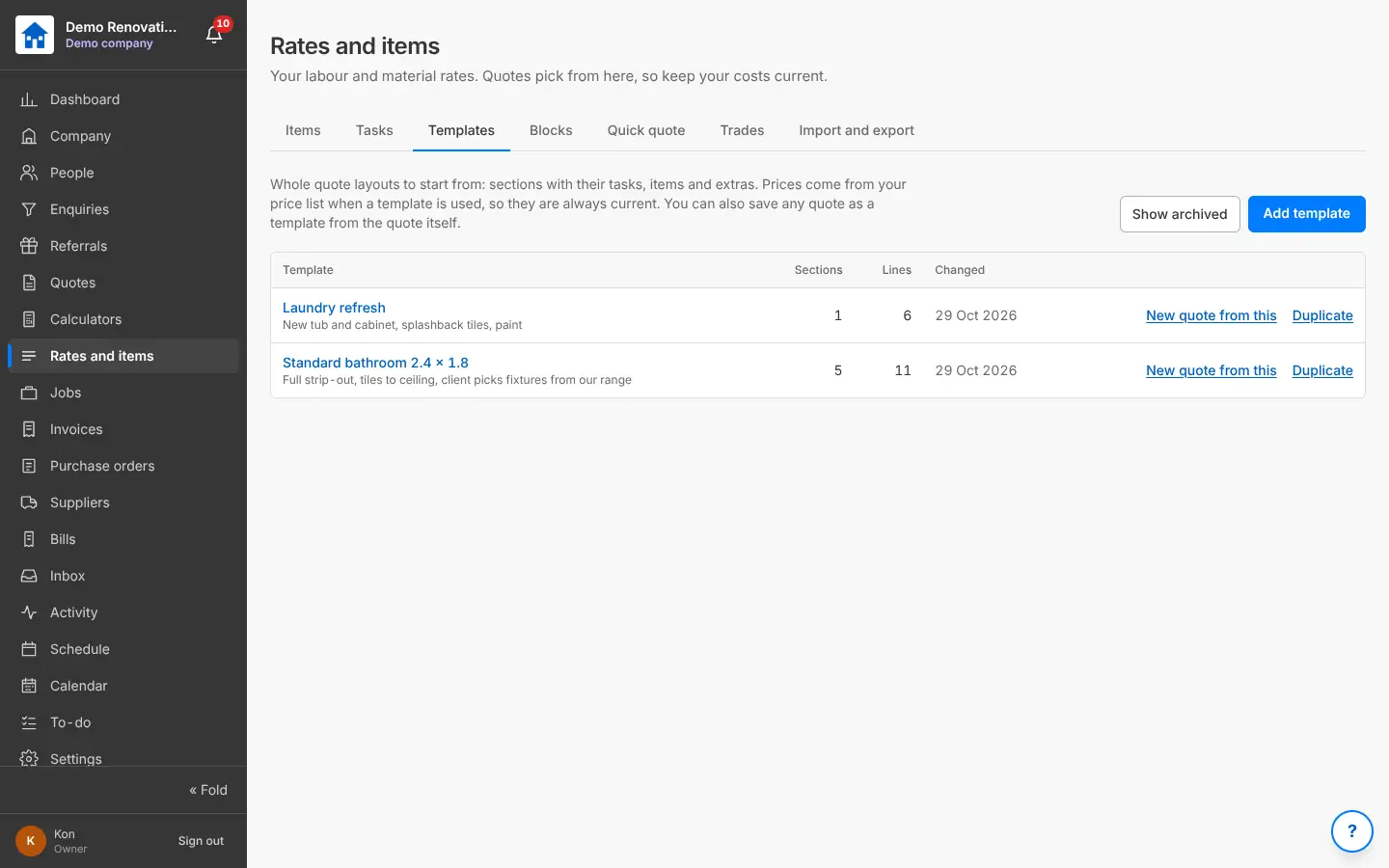
A template is a whole job laid out (a standard bathroom, a laundry); a block is one section you drop into any quote (a shower, a vanity wall). Save any quote or section as one. Prices come from your price list when used, so they are always current.

Why it helps: Your usual jobs start 90% done.

In Better Reno: Rates and items → Templates, Blocks

Better Reno takes care of

  • Prices come from your price list on the day the template is used, so a template never goes stale.
  • Saves any quote as a template, or any section as a block, in one click.
  • Duplicates a template to make a variation of it.
Quote templates with sections and lines, New quote from this and Duplicate
Templates: start a quote with every section and line in.

Send, revise and follow up

Send the quote as a PDF with the client’s link (emailed straight from Better Reno from 5 Nov 2026; until then copy the link into your own email or a text); see when it was opened; the client approves on the link. Changes after it went out are a revision (Q-1001/1) with the old one kept; an accepted quote is final. Expiry dates, follow-ups and Waiting for an answer on the Dashboard.

Why it helps: No more “which version did we send?”.

In Better Reno: A quote → Send, New revision

Better Reno takes care of

  • Shows when the client opened the quote, and puts quotes waiting for an answer on the Dashboard.
  • Keeps the old version untouched when you make a revision, and carries its selections across.
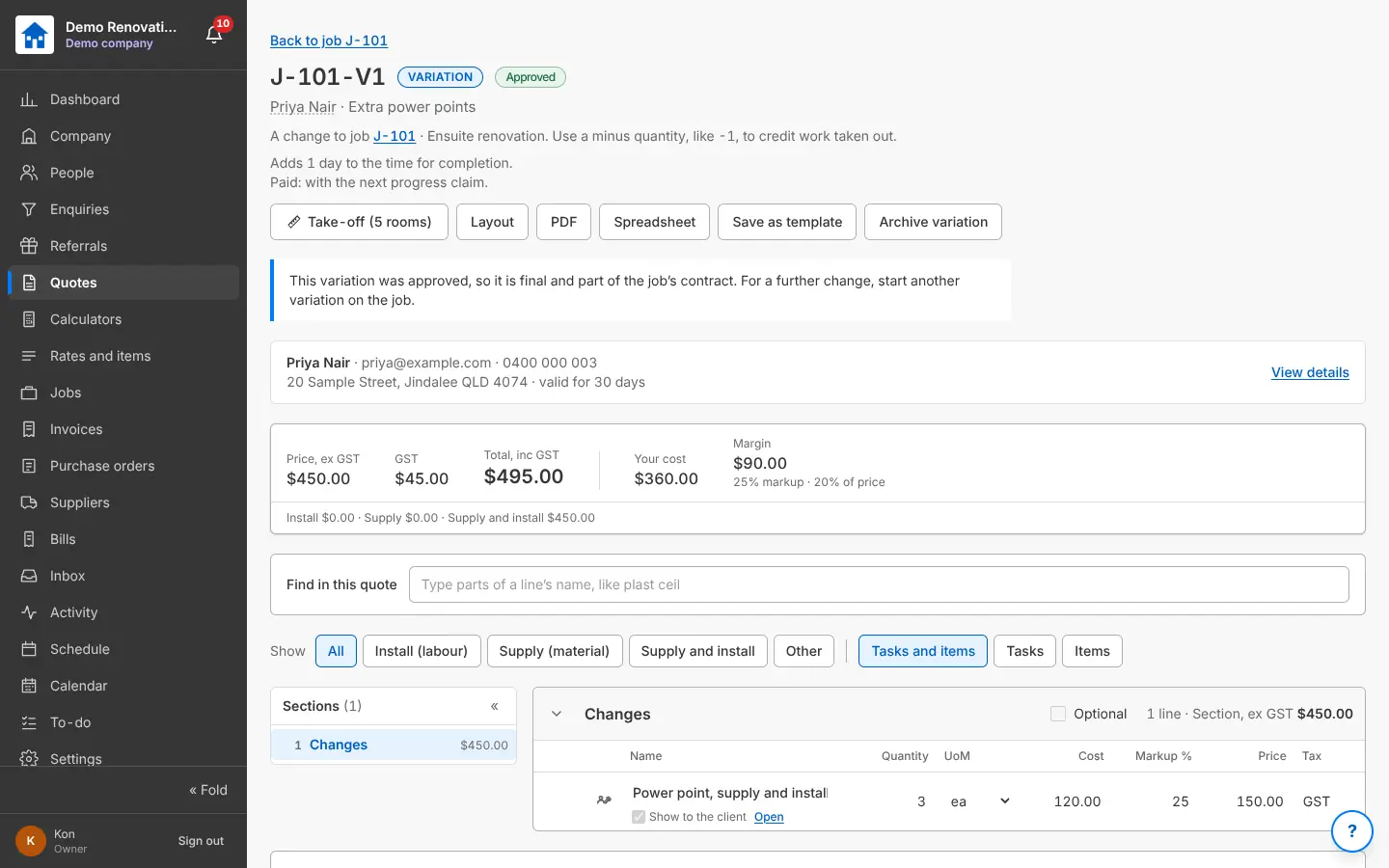
  • Locks an accepted quote: changes from then on are variations.
  • Shows when a quote runs out, on the Calendar and the Dashboard.
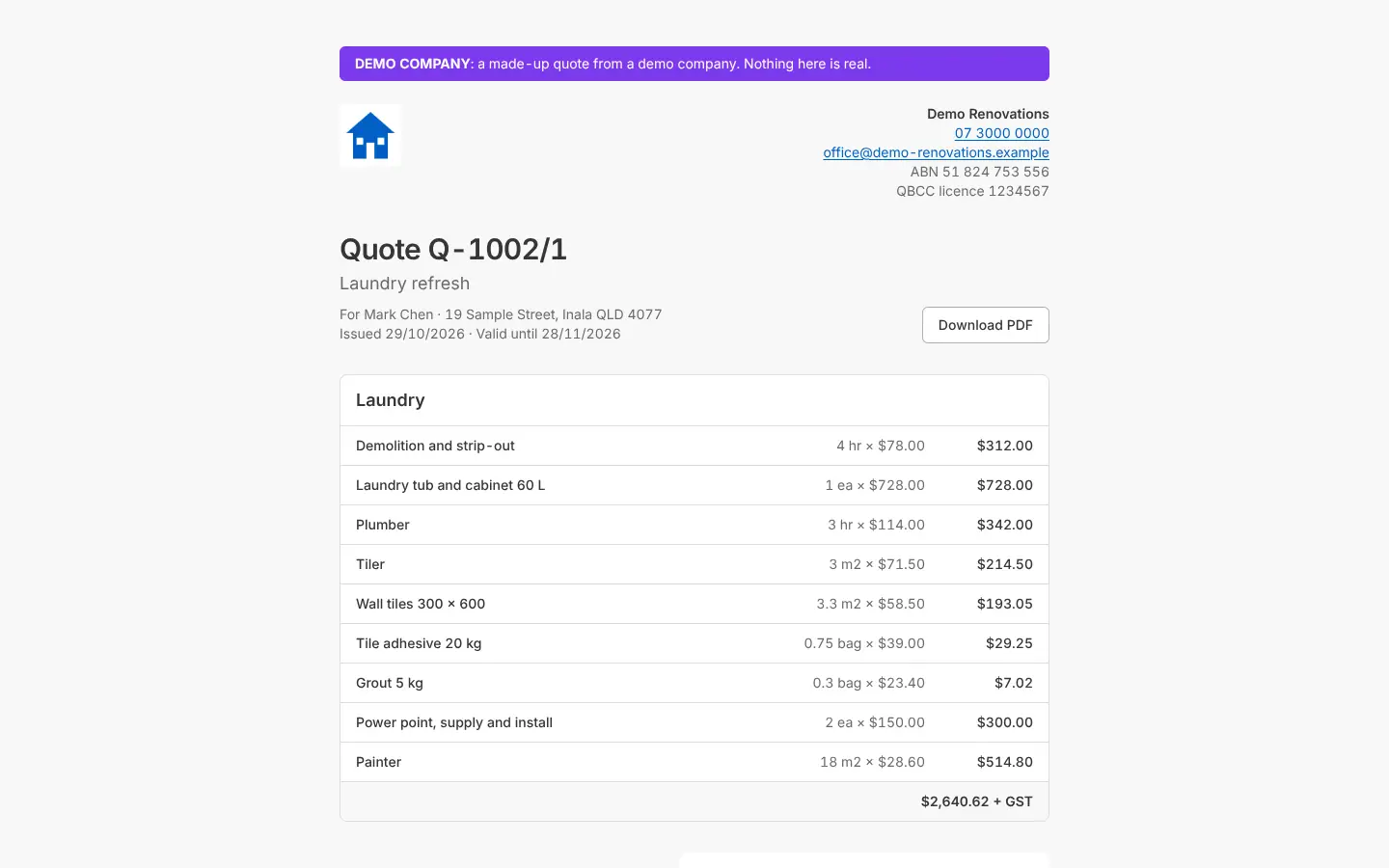
The client’s quote page with the lines and a Download PDF button
What the client sees from their link: no login, approve on the phone.

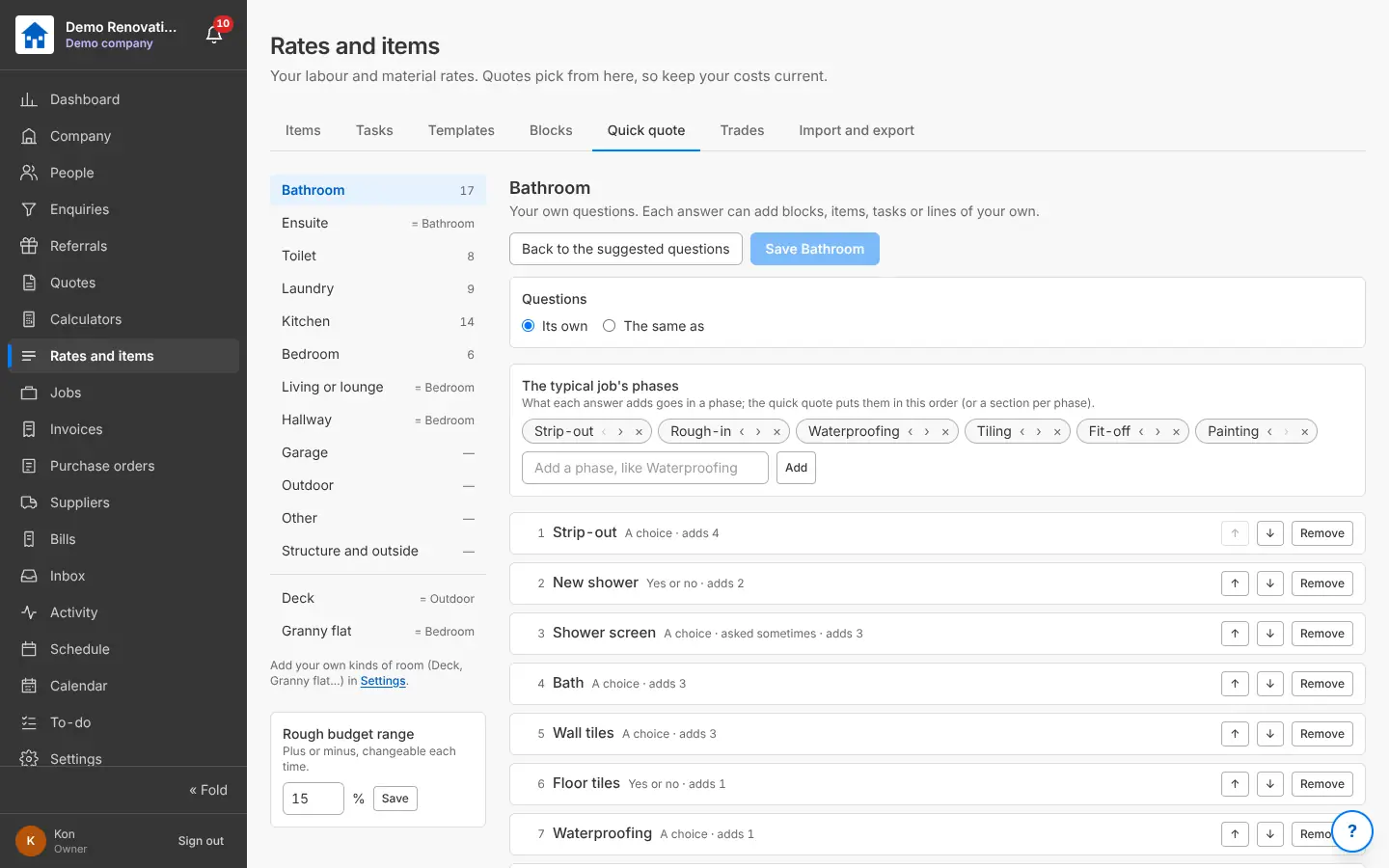
Quick quote and rough budgets

Your own questions for each kind of room (new shower? bath? floor tiles?), each answer adding your lines, blocks or tasks. Answer them on site from the take-off for a rough budget with a range (plus or minus your percentage), show it to the client or email it, then turn it into a quote.

Why it helps: A ballpark before you leave the driveway, from your own prices.

In Better Reno: Rates and items → Quick quote · a take-off → Rough budget or quick quote

Better Reno takes care of

  • Prices every answer from your own lines, blocks and tasks, with quantities from the take-off.
  • Gives a range (plus or minus your own percentage) as you answer.
  • Saves it as a rough budget to show or email the client, and turns it into a full quote when they say go.
Quick quote set-up: kinds of room, the typical phases and the questions
Quick quote: your own questions per kind of room.

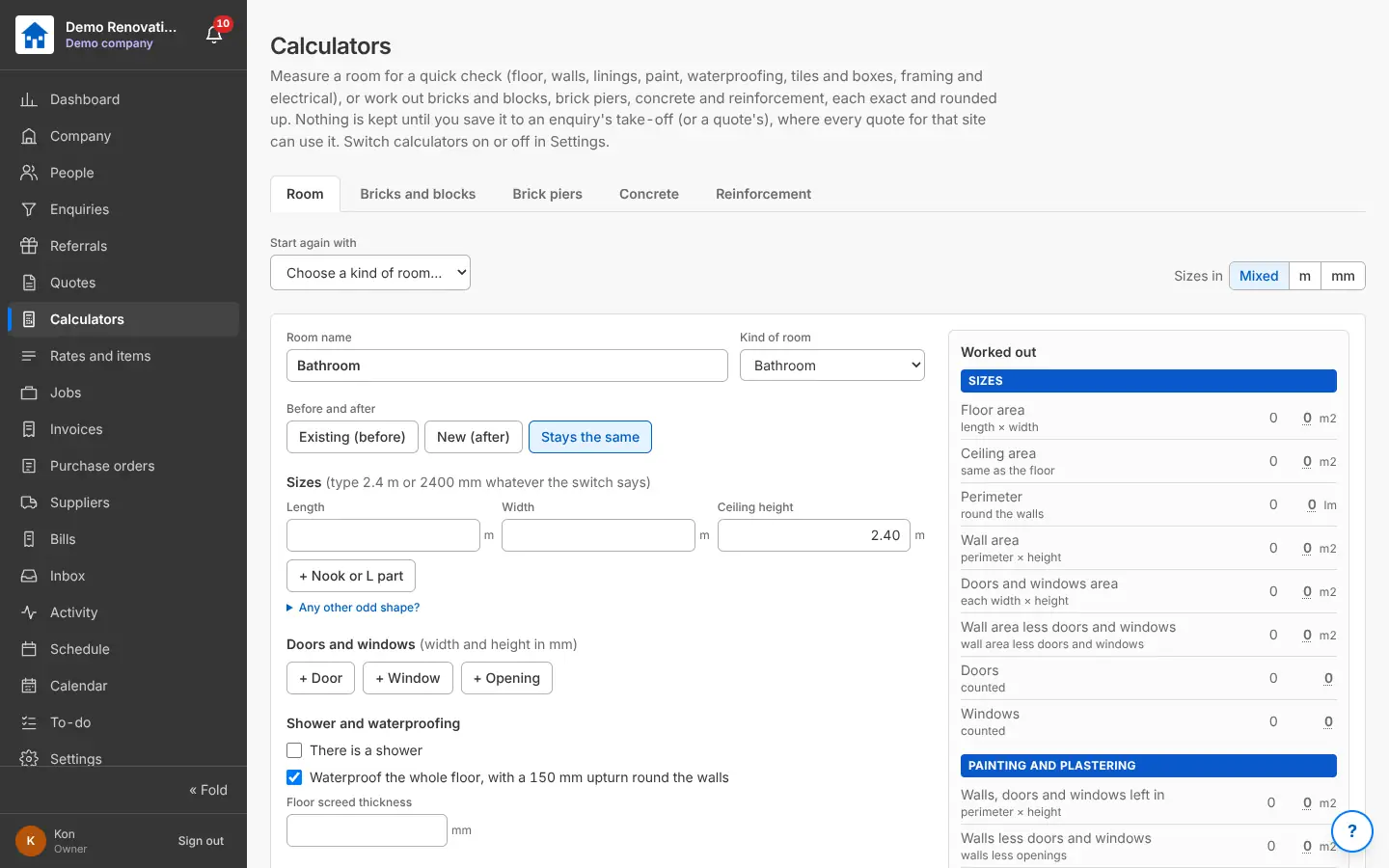
Calculators

A room: floor and ceiling areas, walls less doors and windows, linings, paint, waterproofing, tiles and boxes, framing, electrical. Also bricks and blocks, brick piers, concrete and reinforcement. Each figure exact and rounded up; save it into an enquiry’s take-off.

Why it helps: The sums you do on the back of a docket, done right every time.

In Better Reno: Side menu → Calculators

Better Reno takes care of

  • Shows each figure exact and rounded up, so you order whole boxes and sheets.
  • Saves the room straight into an enquiry’s take-off, ready for the quote.
  • Lets you switch off the calculators your business never uses.
The room calculator with sizes, doors and windows, and the worked-out figures
Calculators: sizes in, areas, linings, paint and tiles out.

Rebuild someone else’s quote with AI

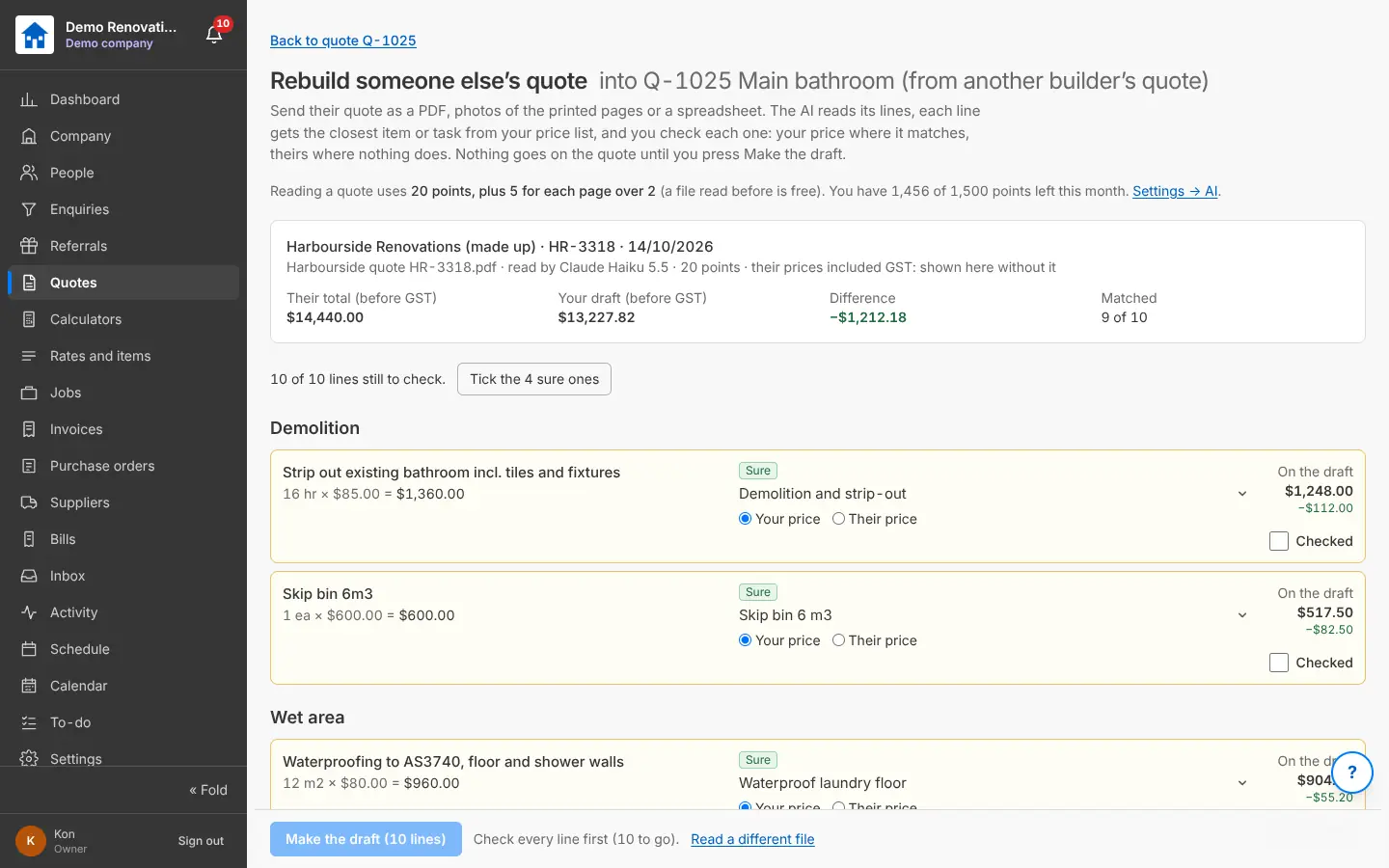
The client shows you another builder’s quote: upload the PDF, photos of the pages or a spreadsheet. The AI reads the lines and matches each to the closest item or task in your price list. You check every line (your price or theirs), then make your own draft with the difference shown.

Why it helps: Compare like for like and answer in your own prices in a few minutes.

In Better Reno: A draft quote → Rebuild a quote with AI

Better Reno takes care of

  • Marks each match as sure or maybe, and ticks the sure ones for you in one click.
  • Shows the difference line by line and in total between their price and yours.
  • Makes nothing until every line is checked by you.
  • Never sends your prices or your price list to the AI: only the names and units it needs to match.
Rebuild someone else’s quote: their lines matched to your price list, with the difference
Another builder’s quote read by AI, each line matched to yours.

AI with points

Every AI action has a fixed price in points, shown before you start, from a monthly allowance. If a reading fails the points come back.

Why it helps: You know what the AI costs before you press the button.

In Better Reno: Settings → AI and alerts → AI

Better Reno takes care of

  • Shows the points before you start and refuses before anything is spent if there are not enough.
  • Gives the points back by itself when a reading fails.
  • Keeps a list of every AI use and what it took.

Your numbers, and your old system’s

Number sequences for quotes, jobs, variations, orders and invoices the way you like (Q-1001, J-101, PO-1). Coming from another program? Change a draft’s number to carry on from your old system, and keep the old system’s number on a quote or job for searching.

Why it helps: Switch over without your numbers jumping about.

In Better Reno: Settings → Number sequences · a quote, job or order → Change number…

Better Reno takes care of

  • Never uses the same number twice for the same kind of document.
  • Refuses to change a number once the document has gone to anyone, so what the client has always matches.
  • Renumbers a job’s variations with the job.
  • Finds documents by your old system’s number, which never prints on what the client sees.

Would Better Reno suit your business?

Better Reno is used by invited builders for now. Email us about your business and we will set you up with your own company (and a demo to try it on).

Ask for an invite

Opens an email to [email protected]. Nothing is kept on this page.