A job, start to finish
Priya Nair wants her ensuite in Jindalee renovated, with a couple of extra power points. Follow her job through Better Reno, from the phone call to the last payment. (Priya, her job and every name in the pictures are made up: they come from the demo company every builder can try.)
1An enquiry comes in
What you do
Priya rings about her ensuite: you add the enquiry (or it comes in through a client’s referral link). Her name, phone, the site address, where she found you, her budget and what she wants.
What Better Reno does for you
Makes her profile in People (or finds the one she already has), sets the stage to New and puts the follow-up on your Dashboard.
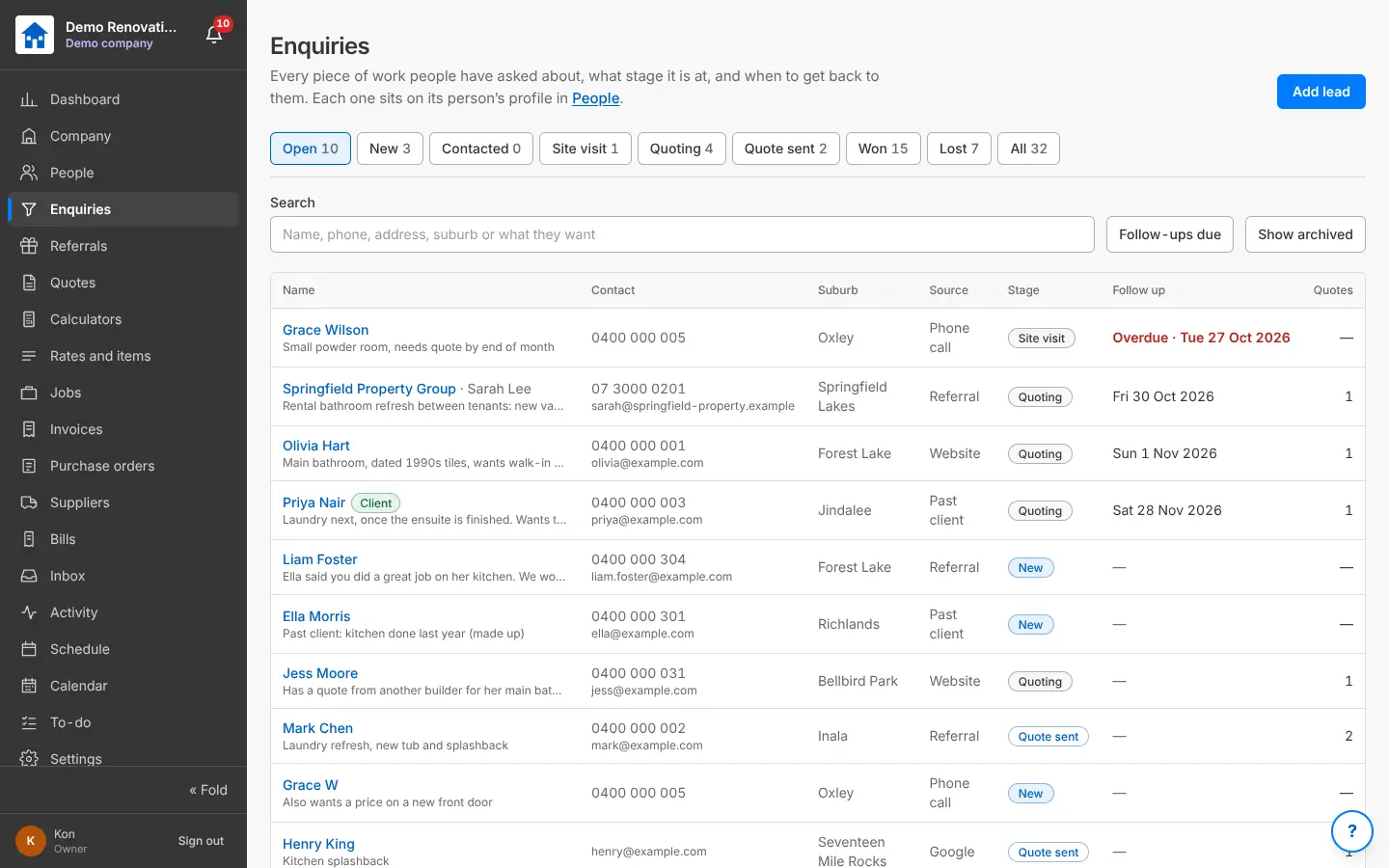
Every enquiry, its stage and when to follow it up. 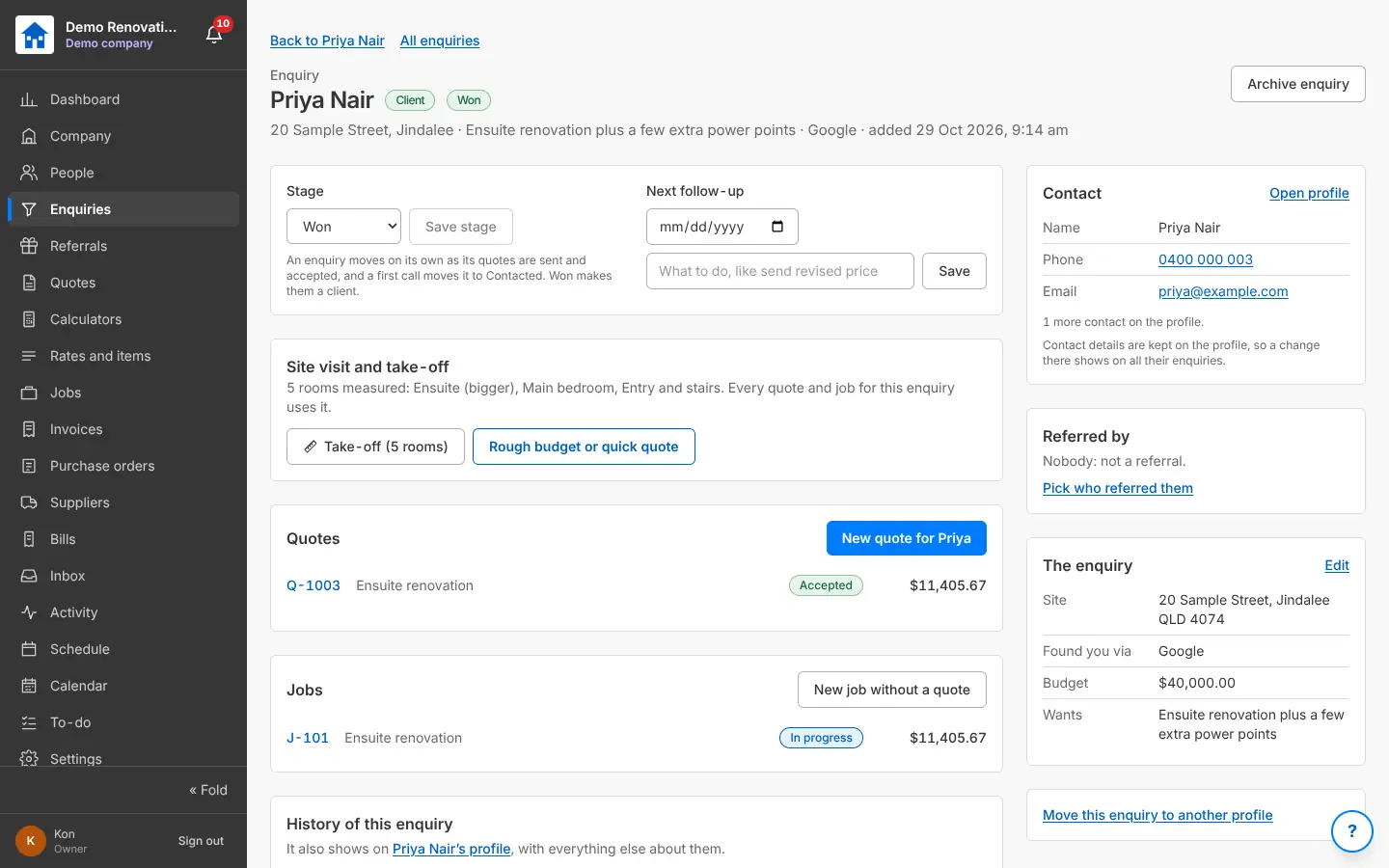
An enquiry: stage, follow-up, take-off, quotes and the job made from it. 2The site visit
What you do
Book the site visit on the Calendar and add a to-do to take photos of the vanity wall and check the floor.
What Better Reno does for you
Moves the enquiry to Site visit, shows the visit in your week and on the phone of whoever is going.
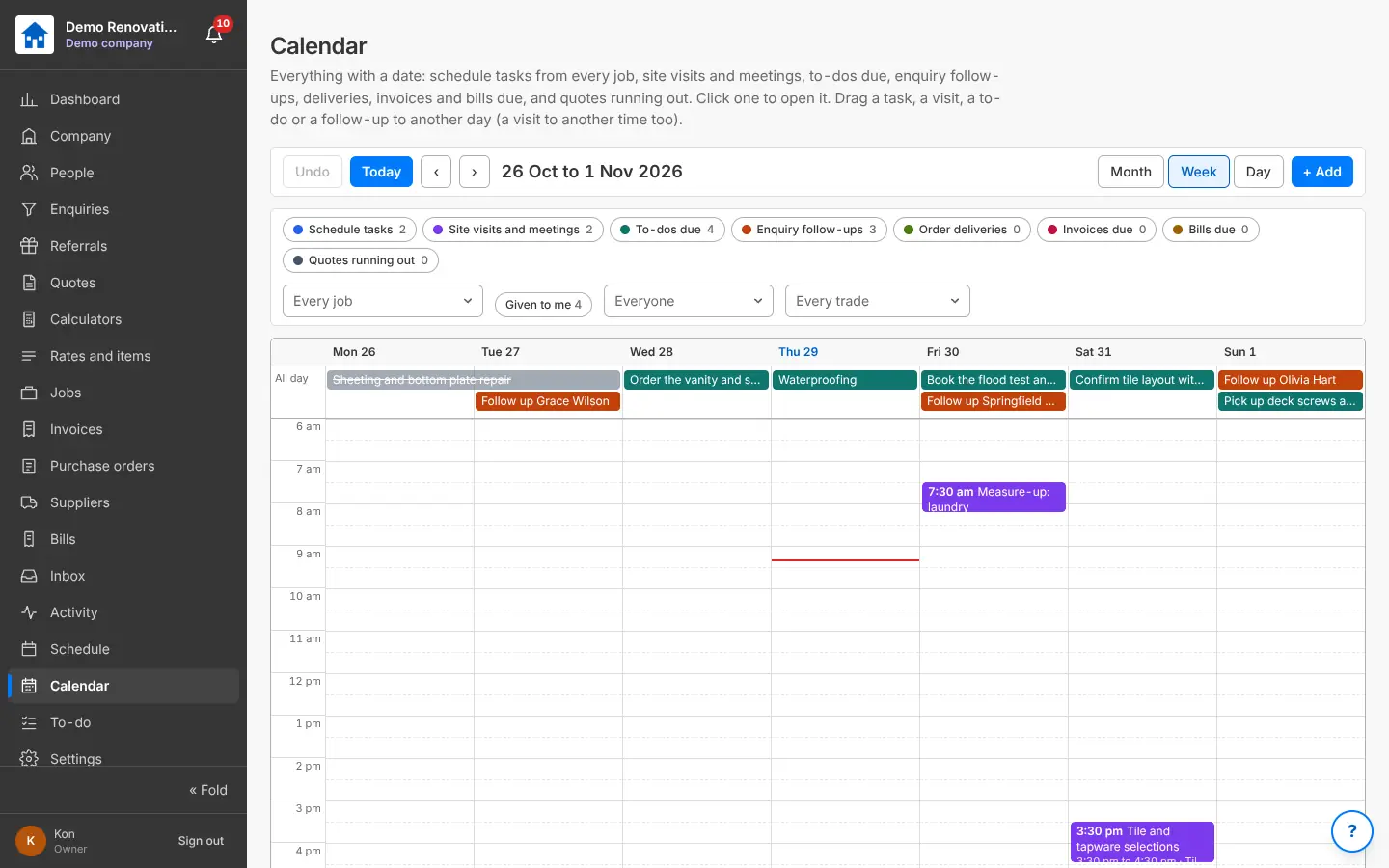
The Calendar: everything with a date, drag to move it. 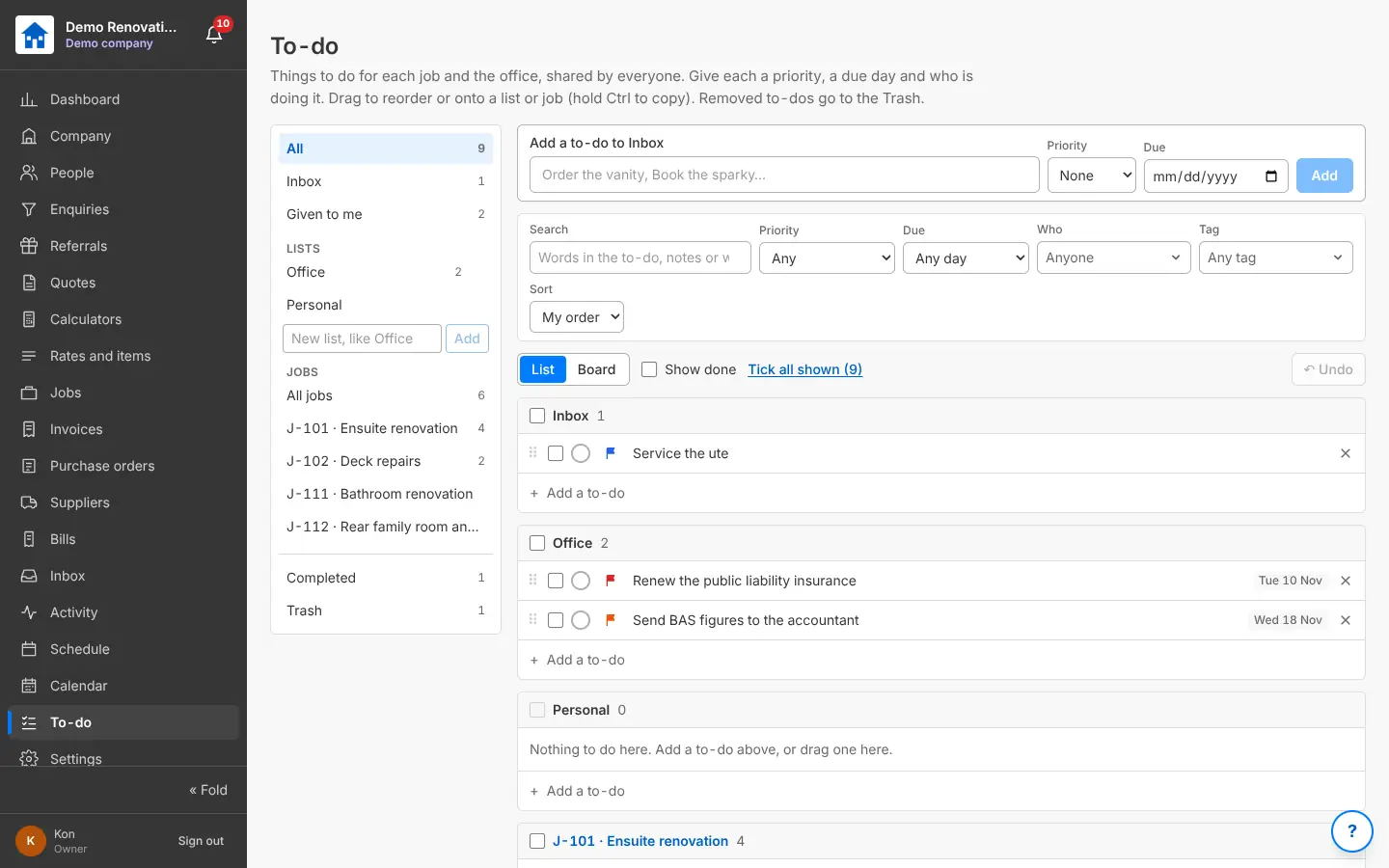
To-do: lists for the office, yourself and each job. 3The take-off
What you do
Measure the rooms by hand, or upload Priya’s PDF plans, set the scale and draw the ensuite on them. Draw the room: the walls, the door, the vanity, the toilet, the shower, the power points.
What Better Reno does for you
Fills the take-off from the plans and the drawing (floor and wall areas, tiles and boxes, waterproofing, linings, counts) and draws the room in 3D for Priya to see.
See the feature: The take-off · Measuring the PDF plans · The room designer: 2D and 3D · Calculators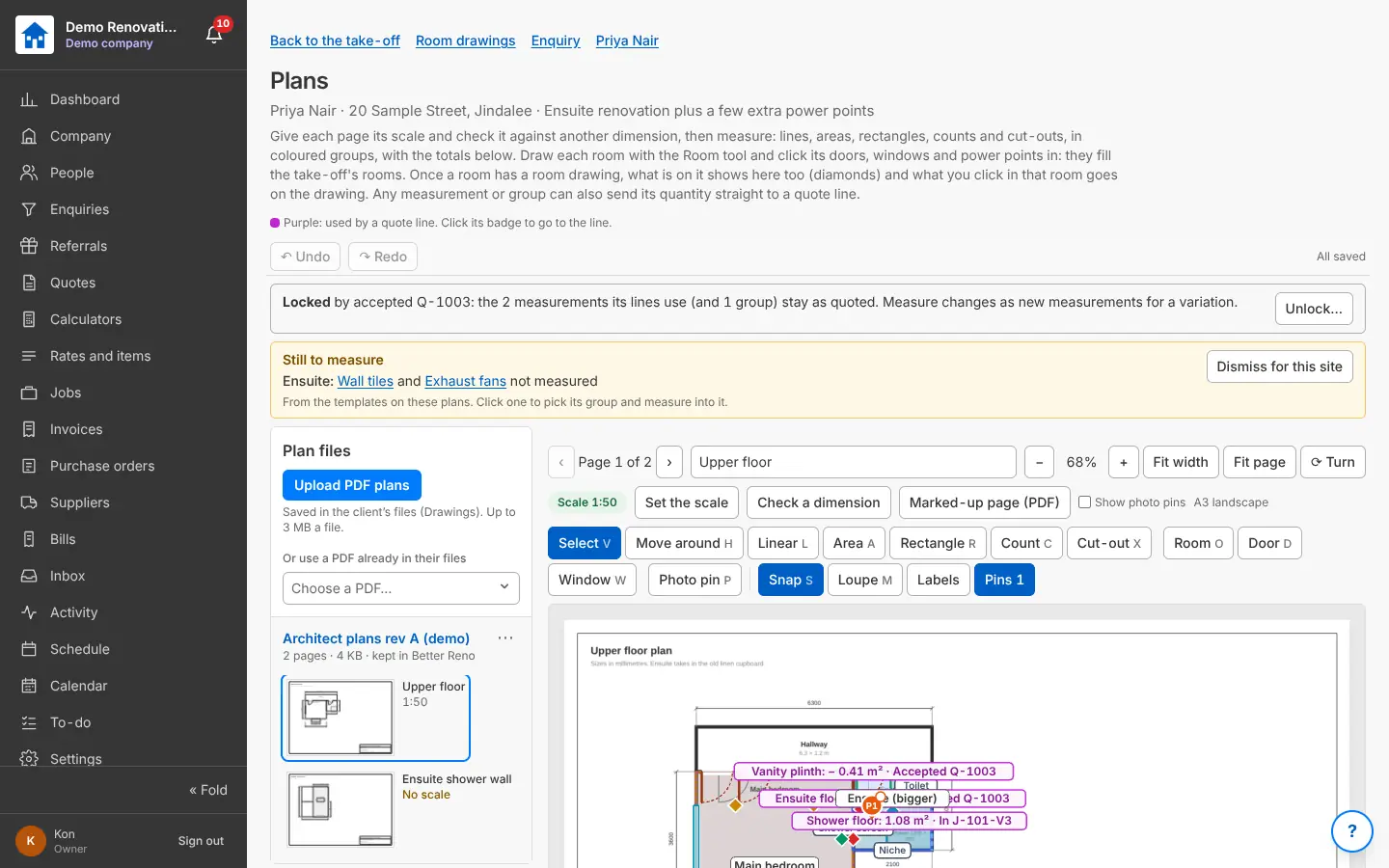
Measuring straight from the client’s PDF plans. 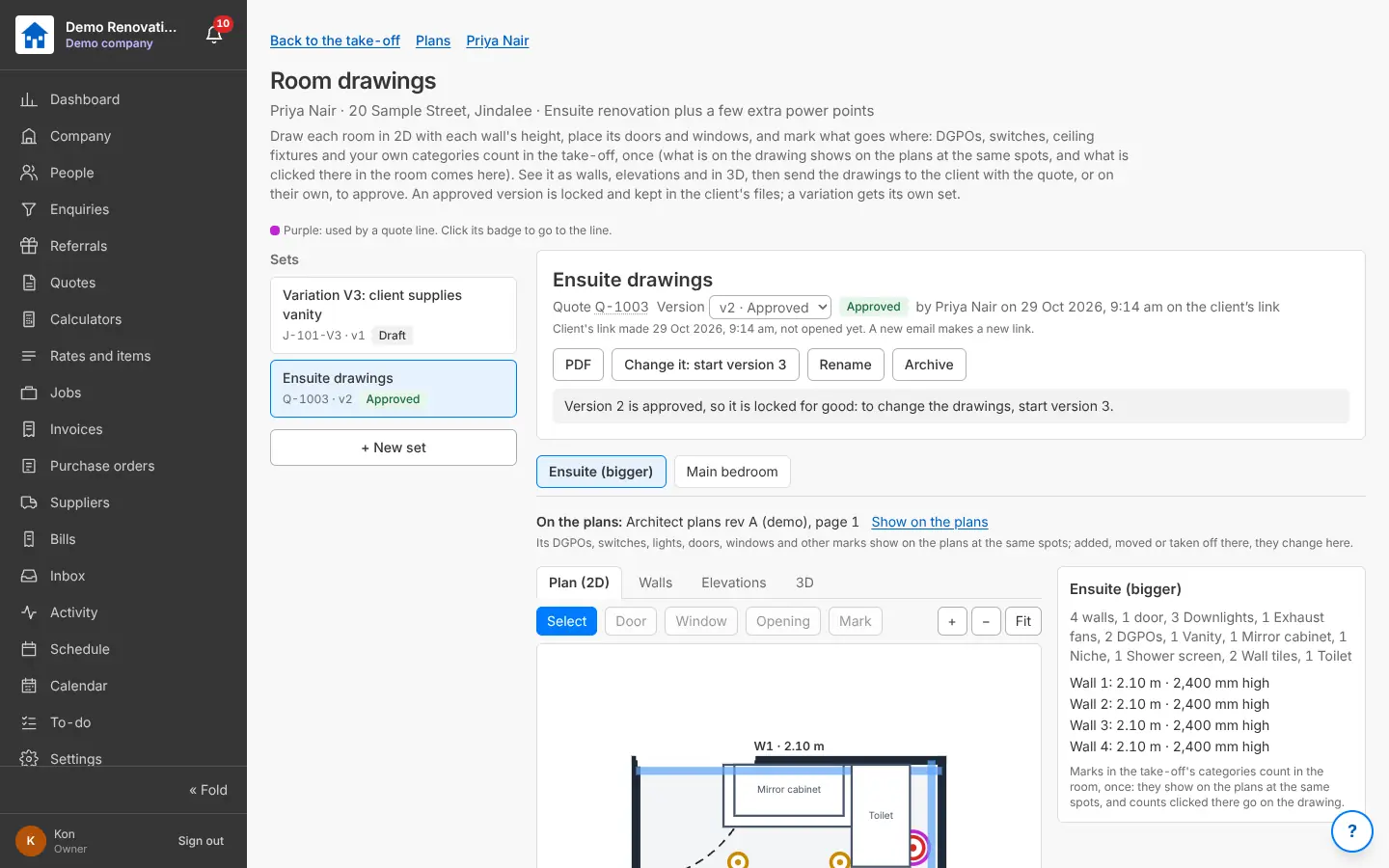
The room drawn in 2D: walls, doors, windows and what goes where. 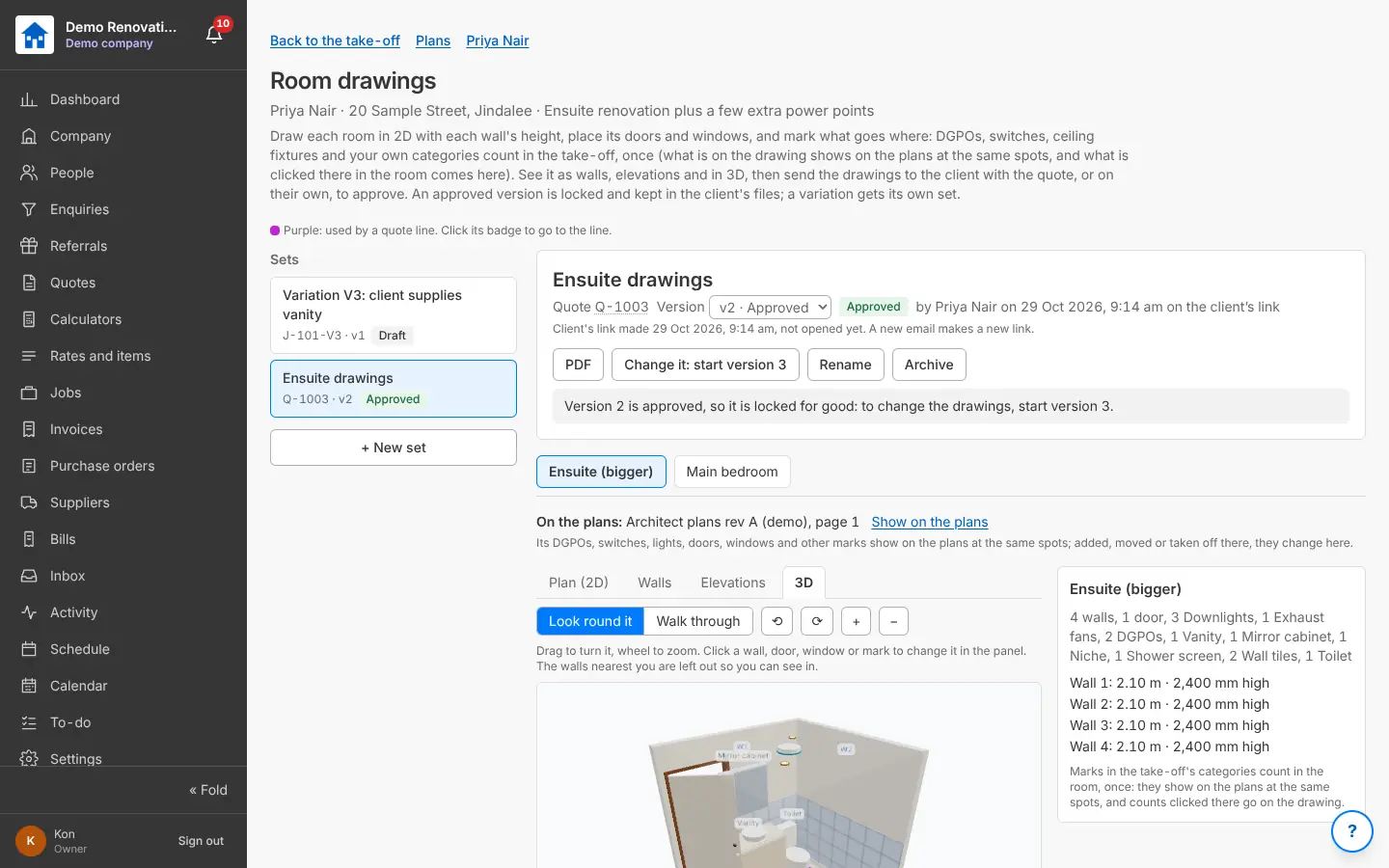
The same room in 3D, drawn by Better Reno. 4The quote
What you do
Start from your bathroom template or a quick quote from the take-off. Add the lines and tasks from your price list, adjust the markups, mark the tiles as a PC allowance and show the product link for the vanity.
What Better Reno does for you
Takes the quantities from the take-off, prices every line from your price list and shows the cost, price and margin as you go. Rather match someone else’s quote? The AI reads it and lines it up with your prices.
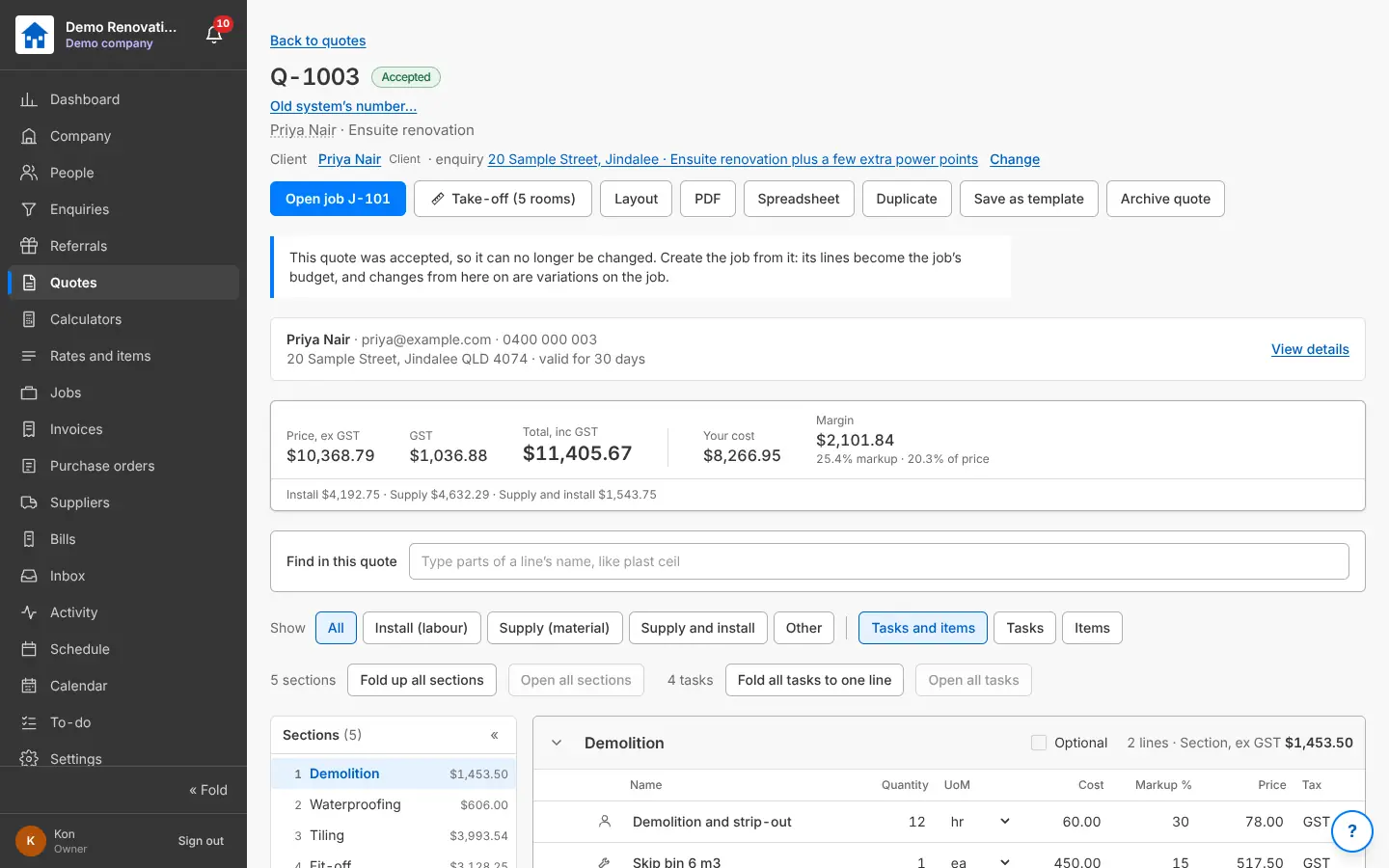
A quote: sections down the side, lines with cost, markup and price. 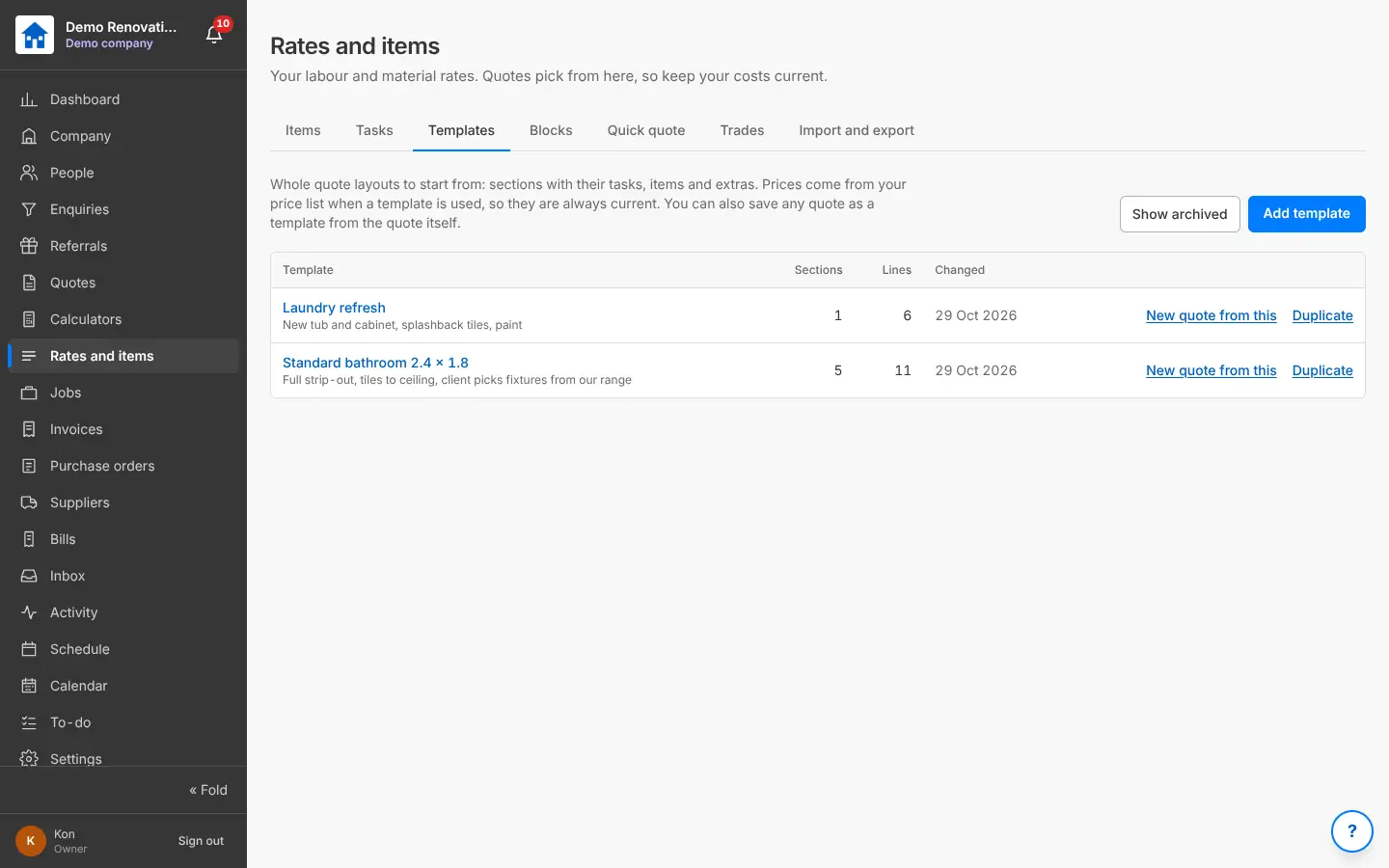
Templates: start a quote with every section and line in. 5Send it; the client approves
What you do
Send the quote: the PDF and Priya’s link. She asks for a change, so you make a revision and send that.
What Better Reno does for you
Keeps the old version, shows you when she opened it, and when she presses Approve on her phone marks it accepted (and the enquiry Won).
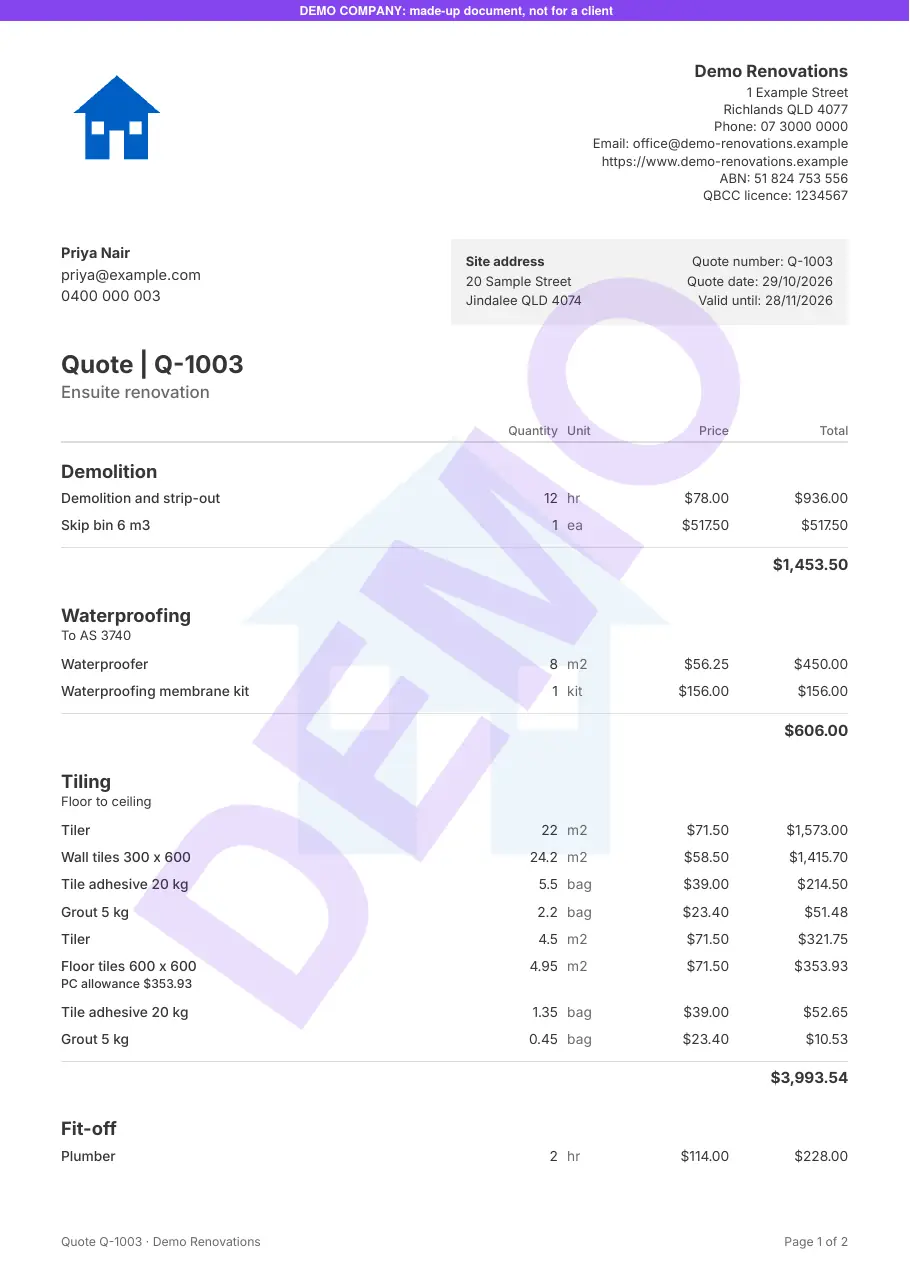
The quote as a PDF (this one says DEMO across it). 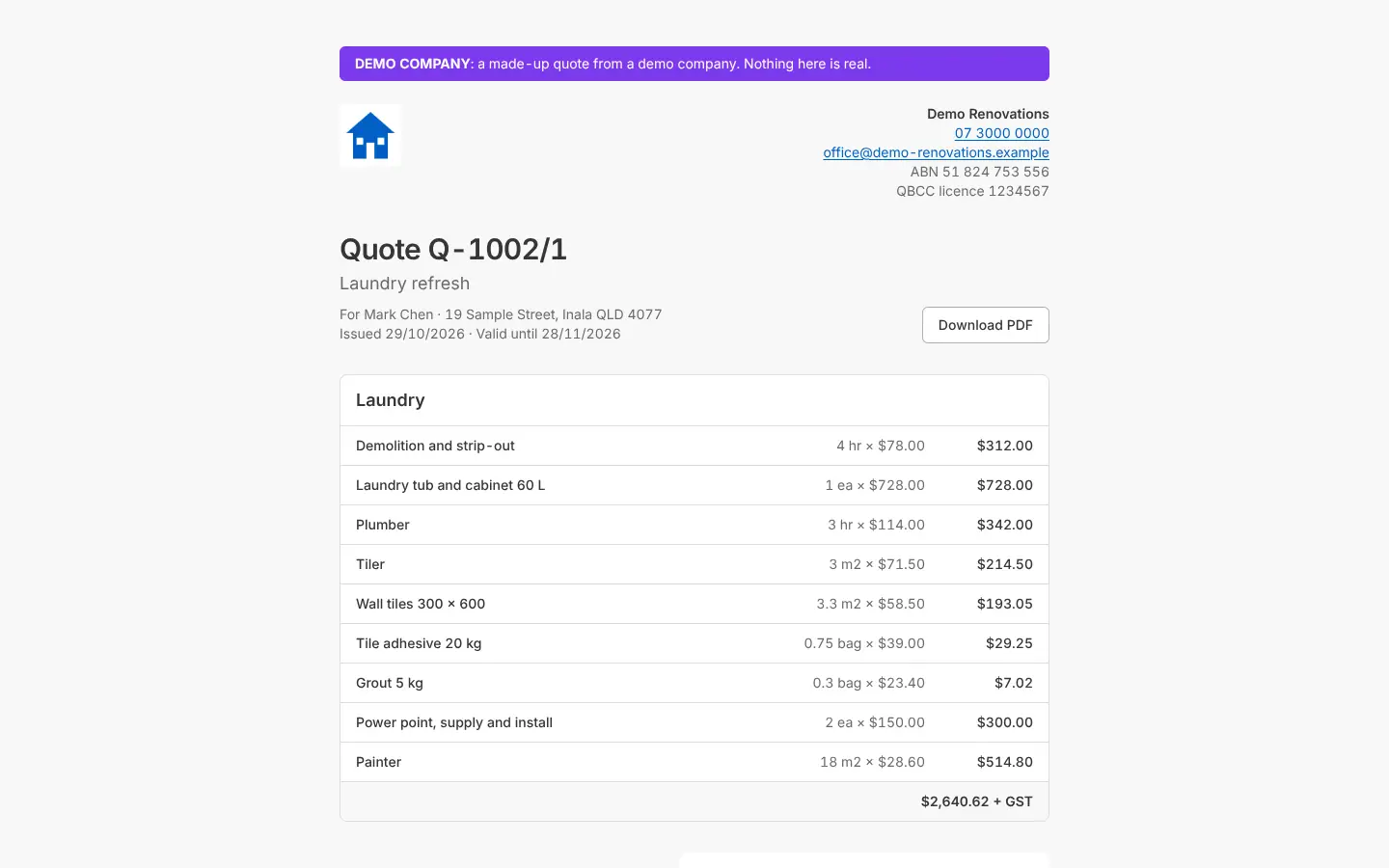
What the client sees from their link: no login, approve on the phone. 6Selections
What you do
List what goes in the ensuite (floor and wall tiles, grout colour, vanity, tapware) with who chooses each and the allowances, then send them to Priya.
What Better Reno does for you
Brings in the quote’s lines with product links or PC allowances, and adds up chosen against allowances. Priya approves each line on her link.
See the feature: Selections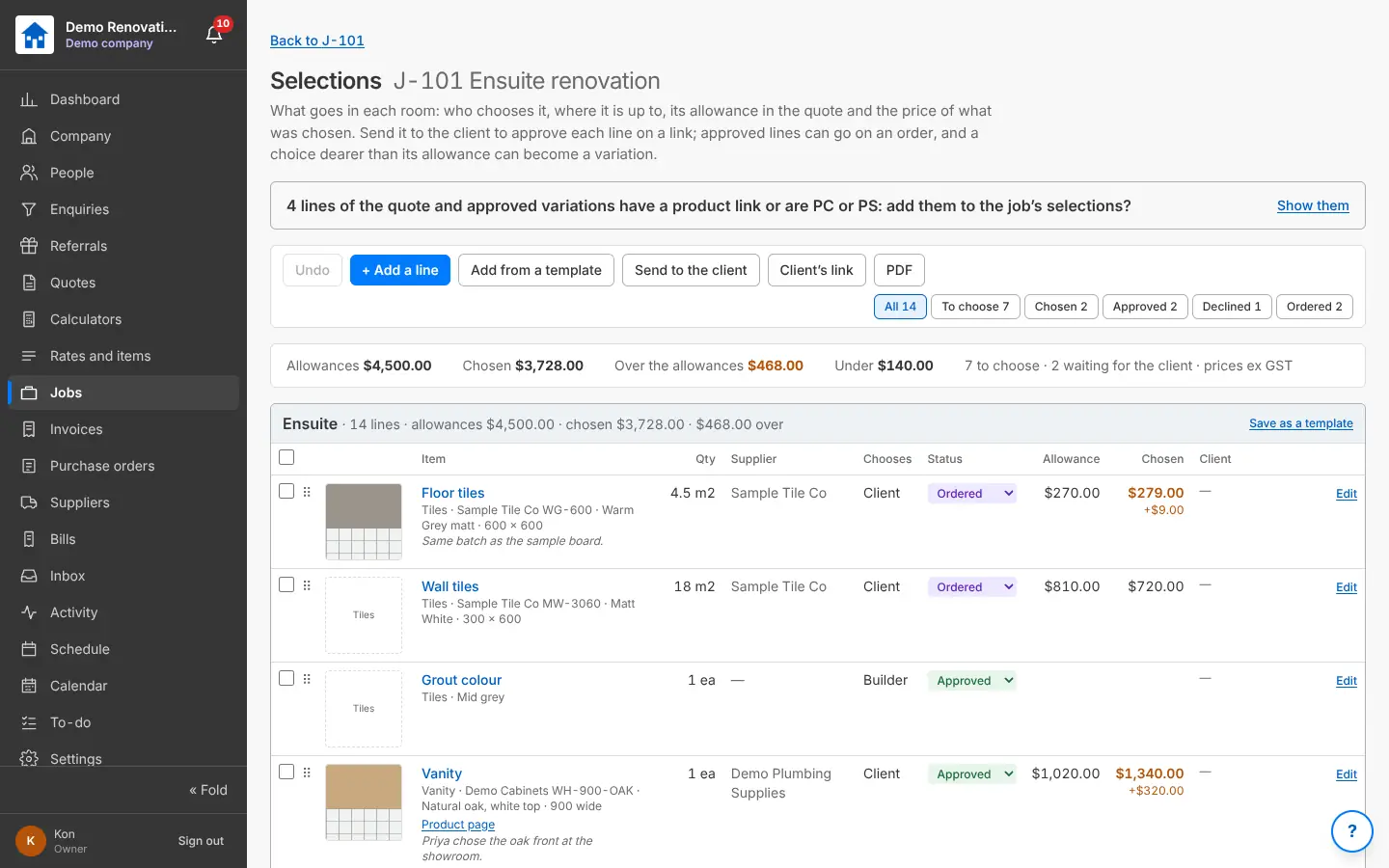
Selections: what goes in each room and who chooses it. 7The job
What you do
Press Open job from the accepted quote, and put the team on it.
What Better Reno does for you
Makes job J-101 with the contract and budget locked from the quote, brings across the client, site, files and selections, and asks if you want the schedule built now.
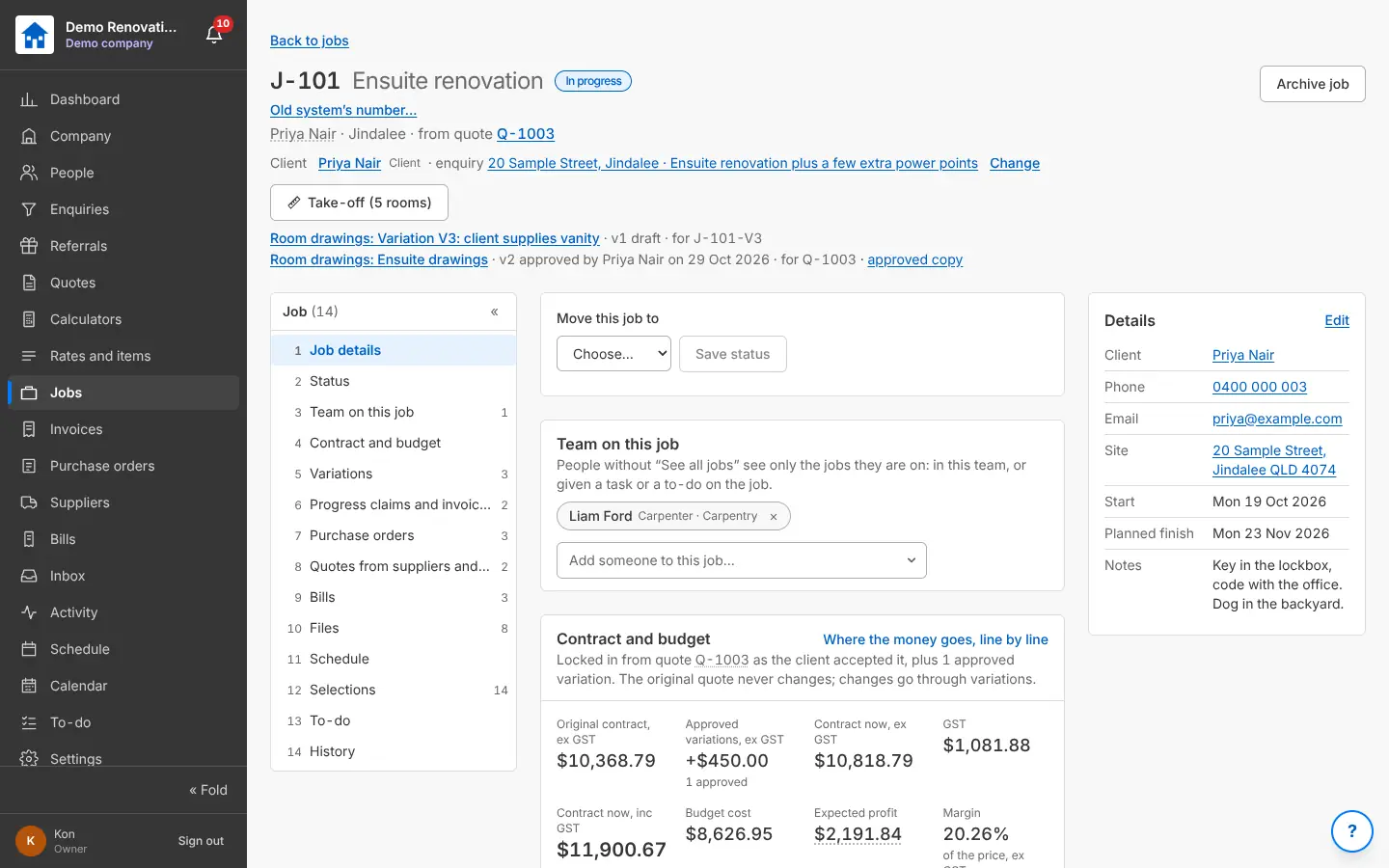
A job: its budget locked from the accepted quote. 8The schedule
What you do
Build the schedule from the quote (strip-out, rough-in, waterproofing, tiling, fit-off), check the days and book the trades.
What Better Reno does for you
Plans the tasks one after another on working days (skipping public holidays and the Christmas shutdown), flags a trade booked on two jobs the same day, and shows each person their tasks on the Calendar and phone.
See the feature: The Gantt chart · The schedule from the quote · Shutdowns and public holidays · Changes waiting for approval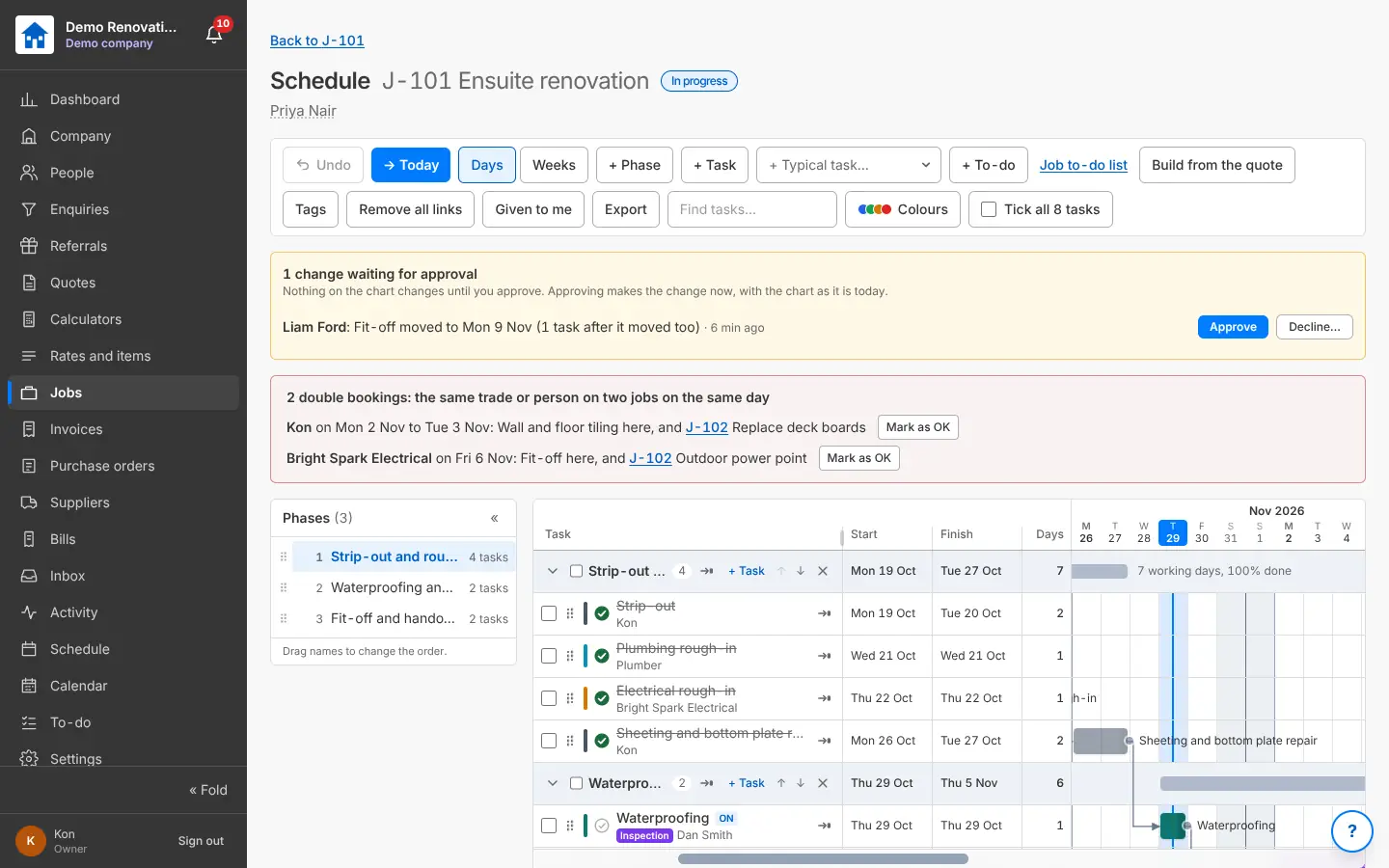
The job’s schedule as a Gantt chart. 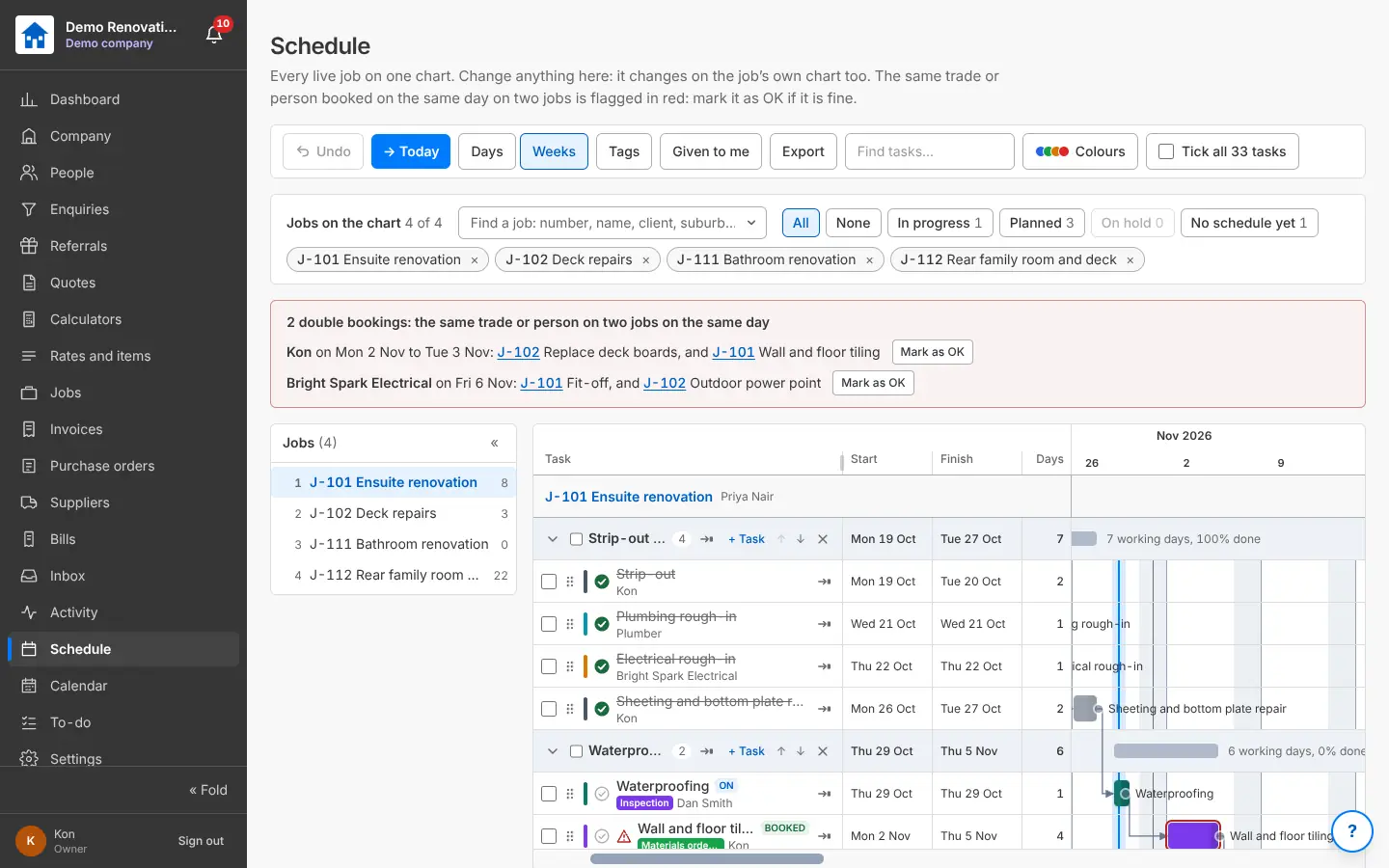
Every job on one chart; double bookings show in red. 9Purchase orders
What you do
Order the tiles from the tile supplier and the plumbing fixtures, straight from the job’s budget lines.
What Better Reno does for you
Fills the quantities and expected costs, makes the PDF for the supplier, and shows straight away if an order costs more than the budget.
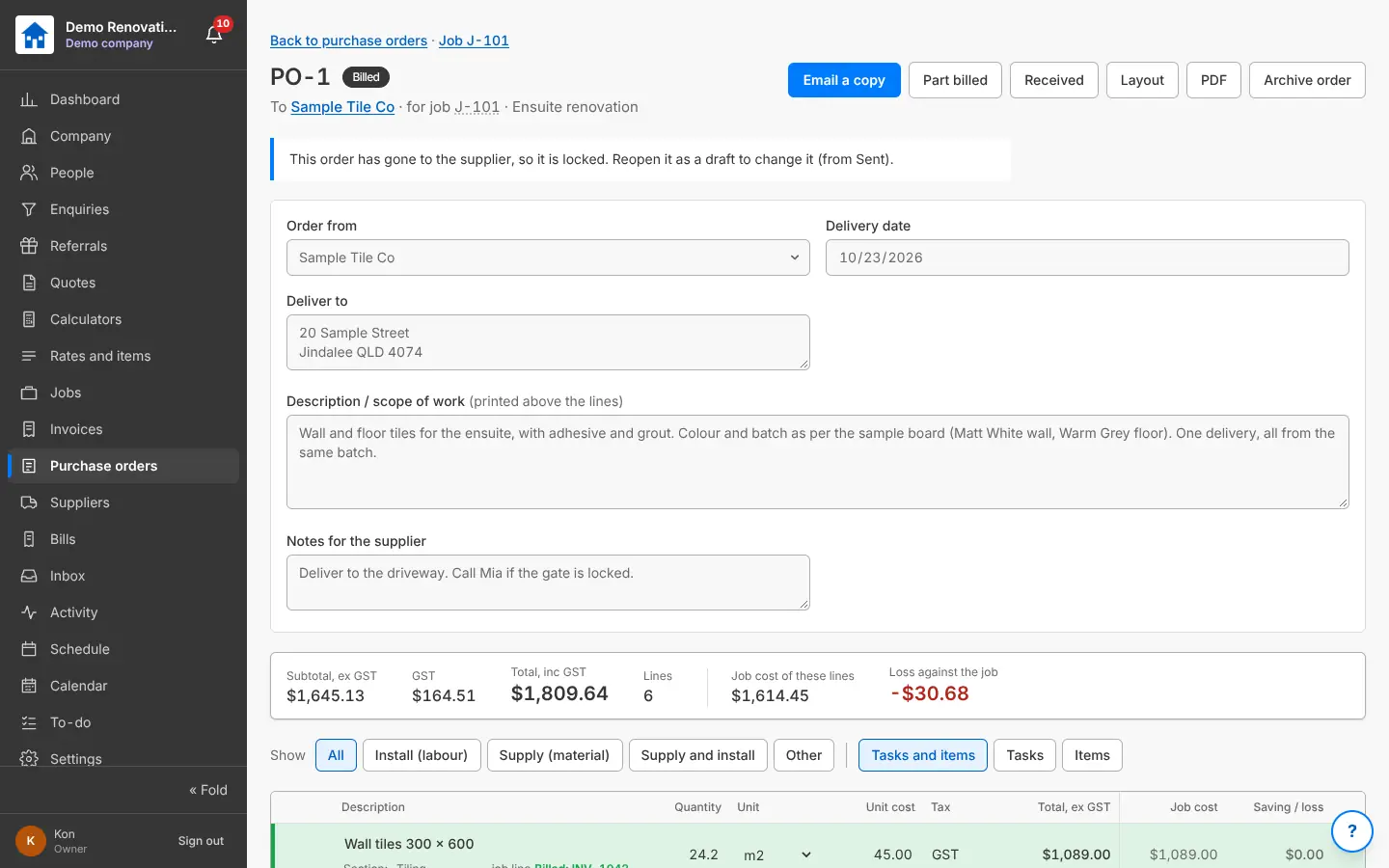
An order made from the job’s budget lines. 10Bills come in
What you do
The supplier emails their invoice to your bills address, or you enter it.
What Better Reno does for you
Files it on the job by the order number, matches each line to the order, and says whether it matches what was expected or by how much it is over.
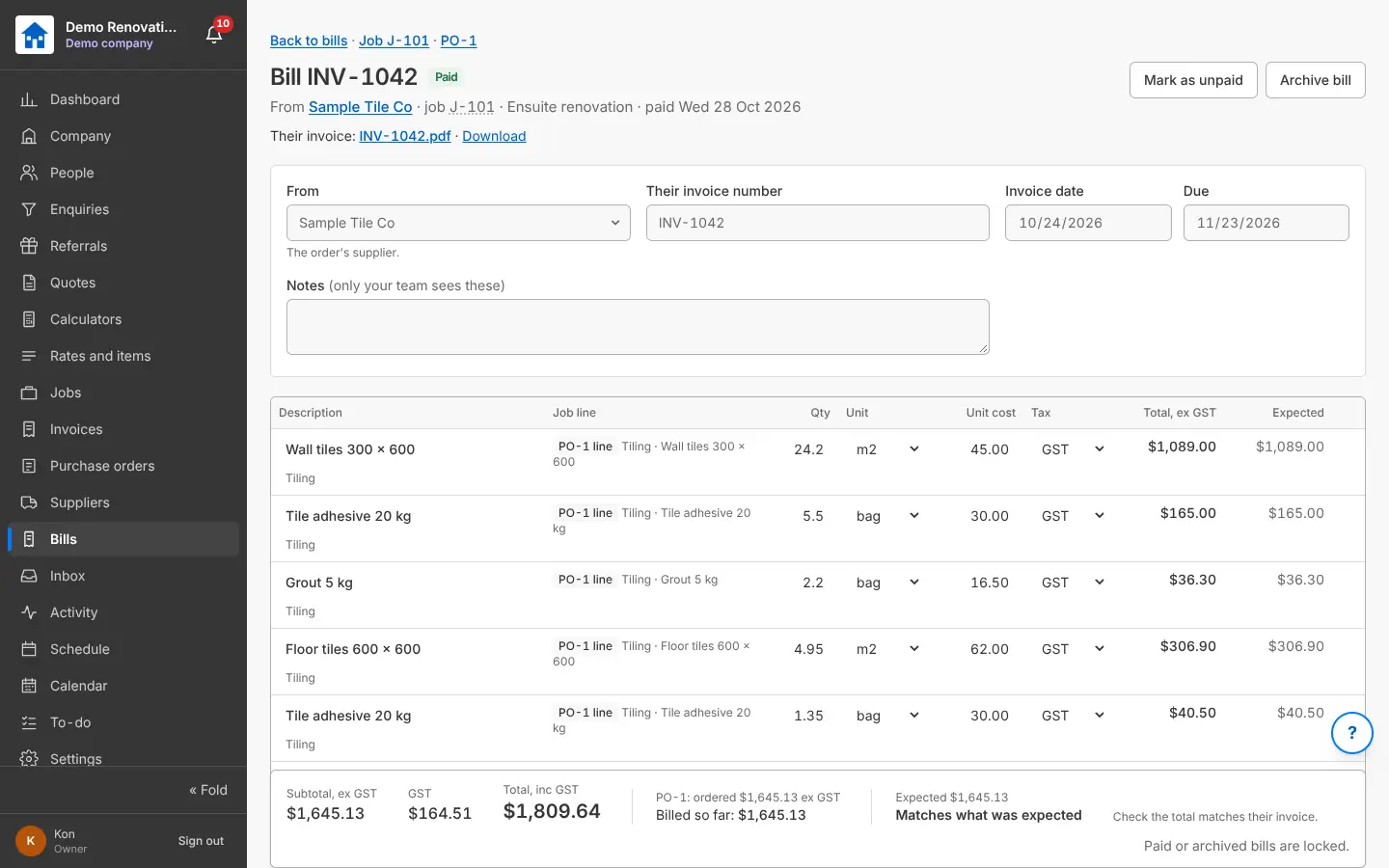
A bill: matches what was expected, or shows the difference. 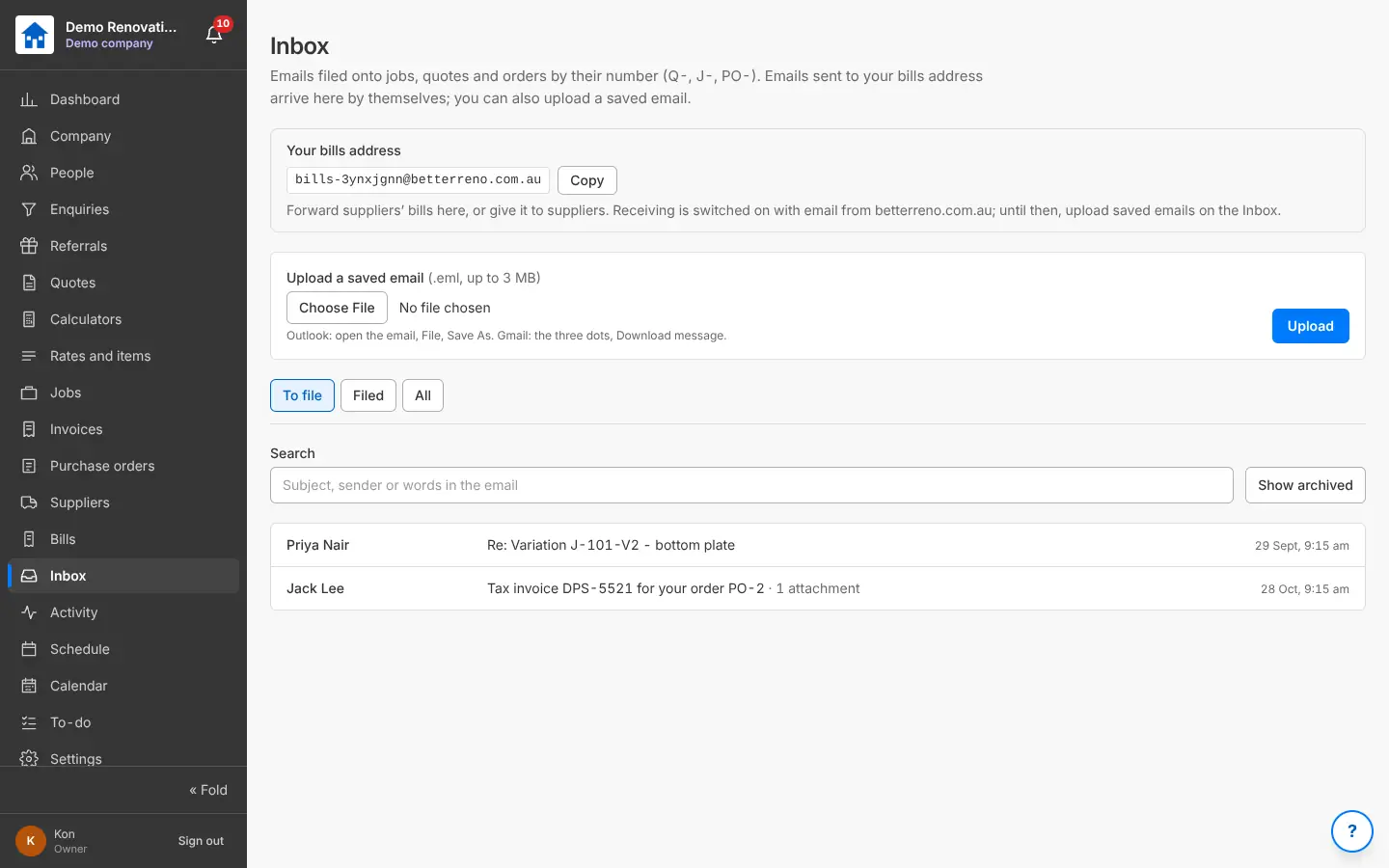
The Inbox and your own bills address. 11A variation on the job
What you do
Priya wants two extra power points: make variation J-101-V1, priced like a quote, and send it.
What Better Reno does for you
Sends her the link to approve, then adds it to the contract and the budget and offers it on the next progress claim.
See the feature: Variations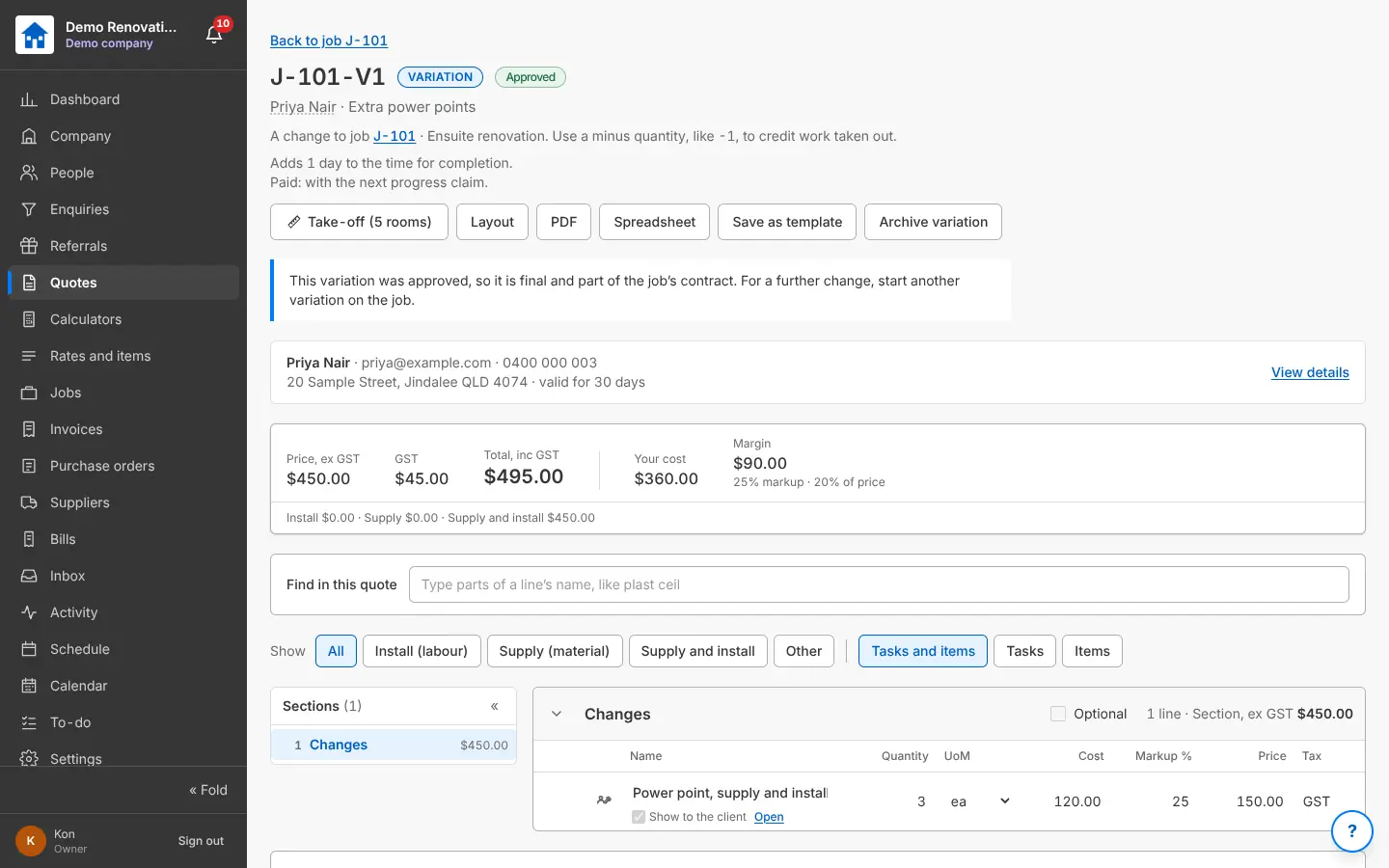
A variation: priced like a quote, approved by the client. 12Progress claims and payments
What you do
Tick the stage that is done (waterproofing and tiling) and the approved variation, and make the claim. Record the payment when it comes in.
What Better Reno does for you
Works out the claim from the stage’s share of the contract, makes the invoice and PDF, and keeps what is owed and overdue in front of you.
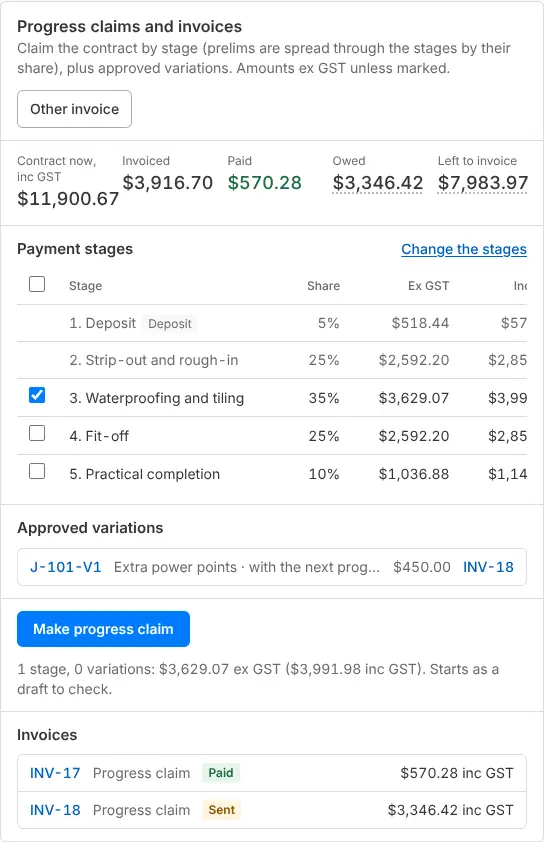
Claim the next stage in one click. 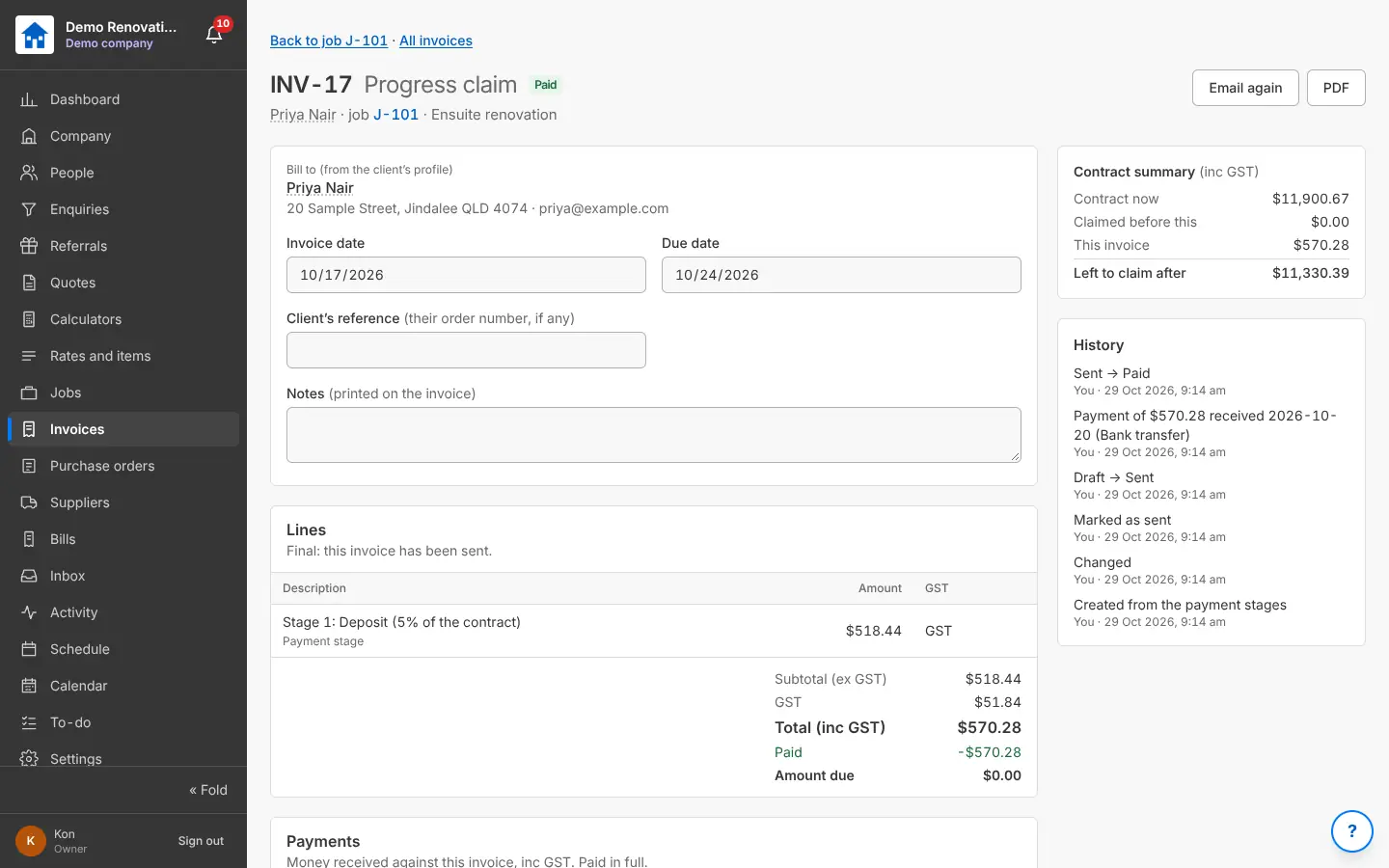
A progress claim with the contract summary. 13Finished
What you do
Mark the job completed, check where the money went, and send Priya her own referral link for her friends.
What Better Reno does for you
Shows the job’s profit line by line against the quote, counts it on the Dashboard, and when a friend enquires through Priya’s link, works out her thank-you under your rules.
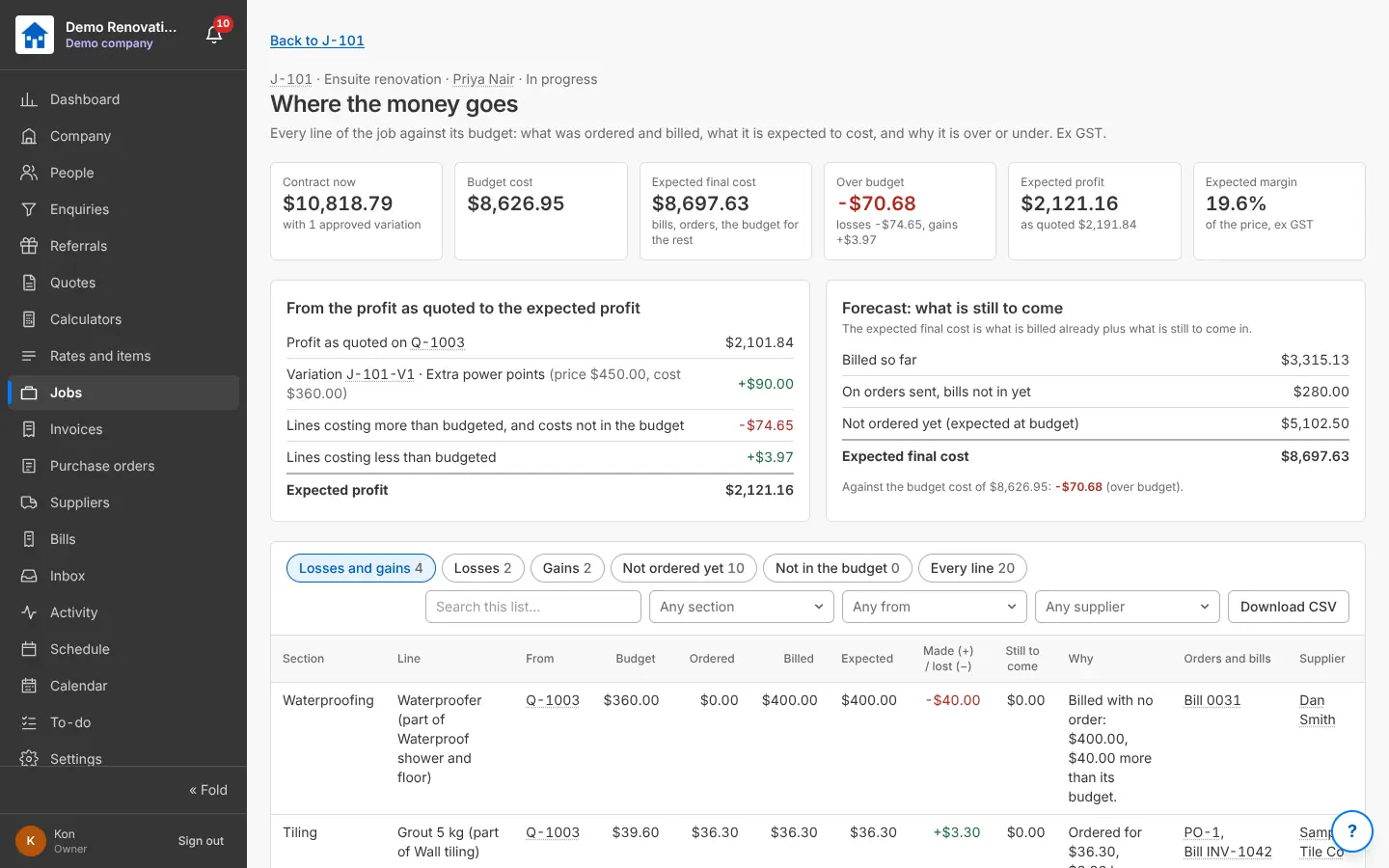
A job’s money, line by line: ordered, billed, over or under. 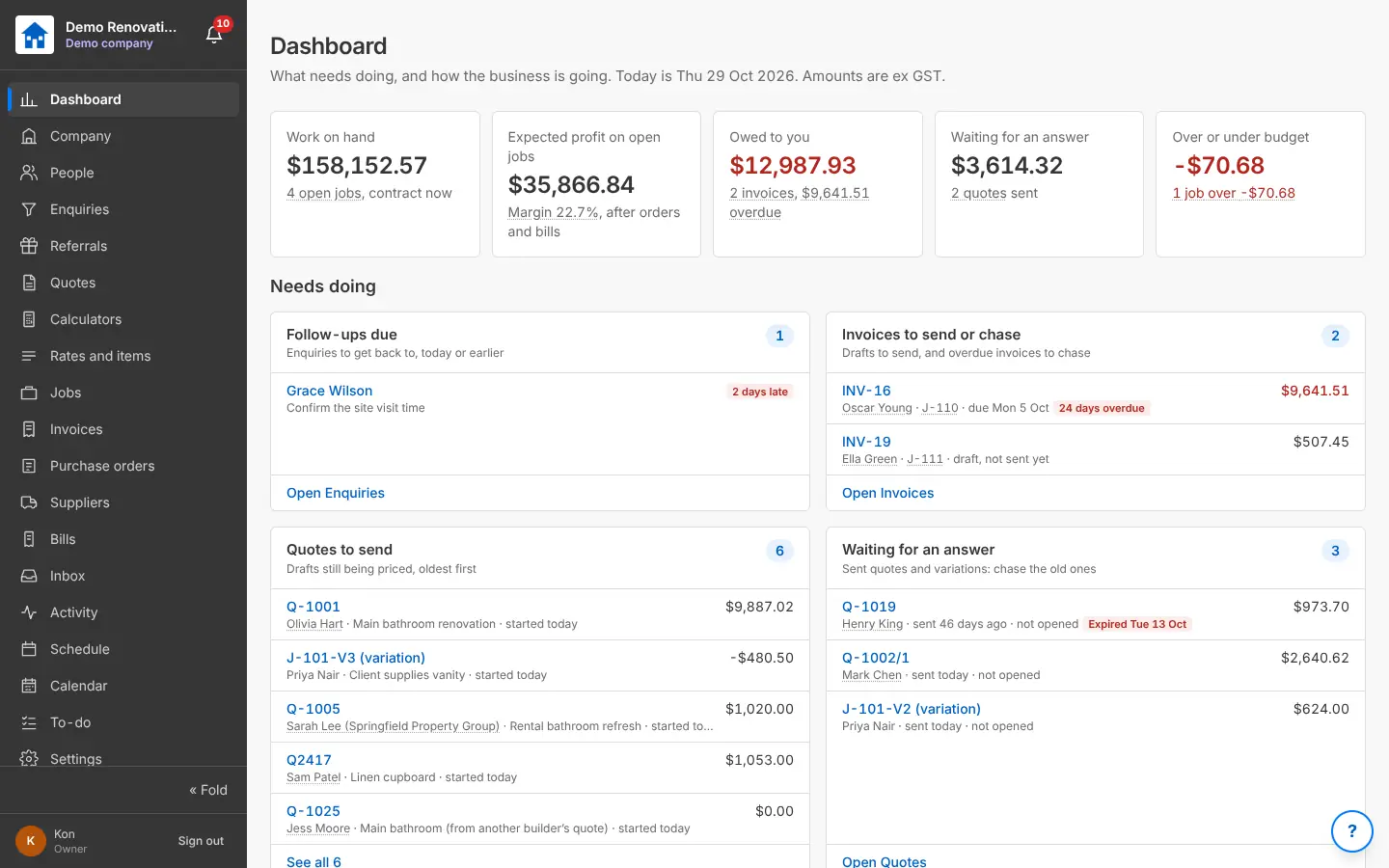
The Dashboard: the figures at the top, what needs doing underneath.
That is one job. Every feature, area by area, is on Features.
Would Better Reno suit your business?
Better Reno is used by invited builders for now. Email us about your business and we will set you up with your own company (and a demo to try it on).
Ask for an inviteOpens an email to [email protected]. Nothing is kept on this page.