Everyday

The small things that make it quick to use every day.

To-do

Lists for the office, yourself and each job: priority, due day, who is doing it and tags; a list or a board; drag to reorder or onto another list (hold Ctrl to copy); Given to me; done ones kept with who ticked them.

Why it helps: The jobs list and the job’s to-dos in the same place.

In Better Reno: Side menu → To-do · a job → To-do

Guide: “To-do list” (Guides in the menu, or the ? on the screen)

Better Reno takes care of

  • Shows to-dos that are due on the Calendar and the Dashboard.
  • Keeps a to-do with its job, and who ticked it done and when.
  • Undo, and drag to reorder or onto another list.
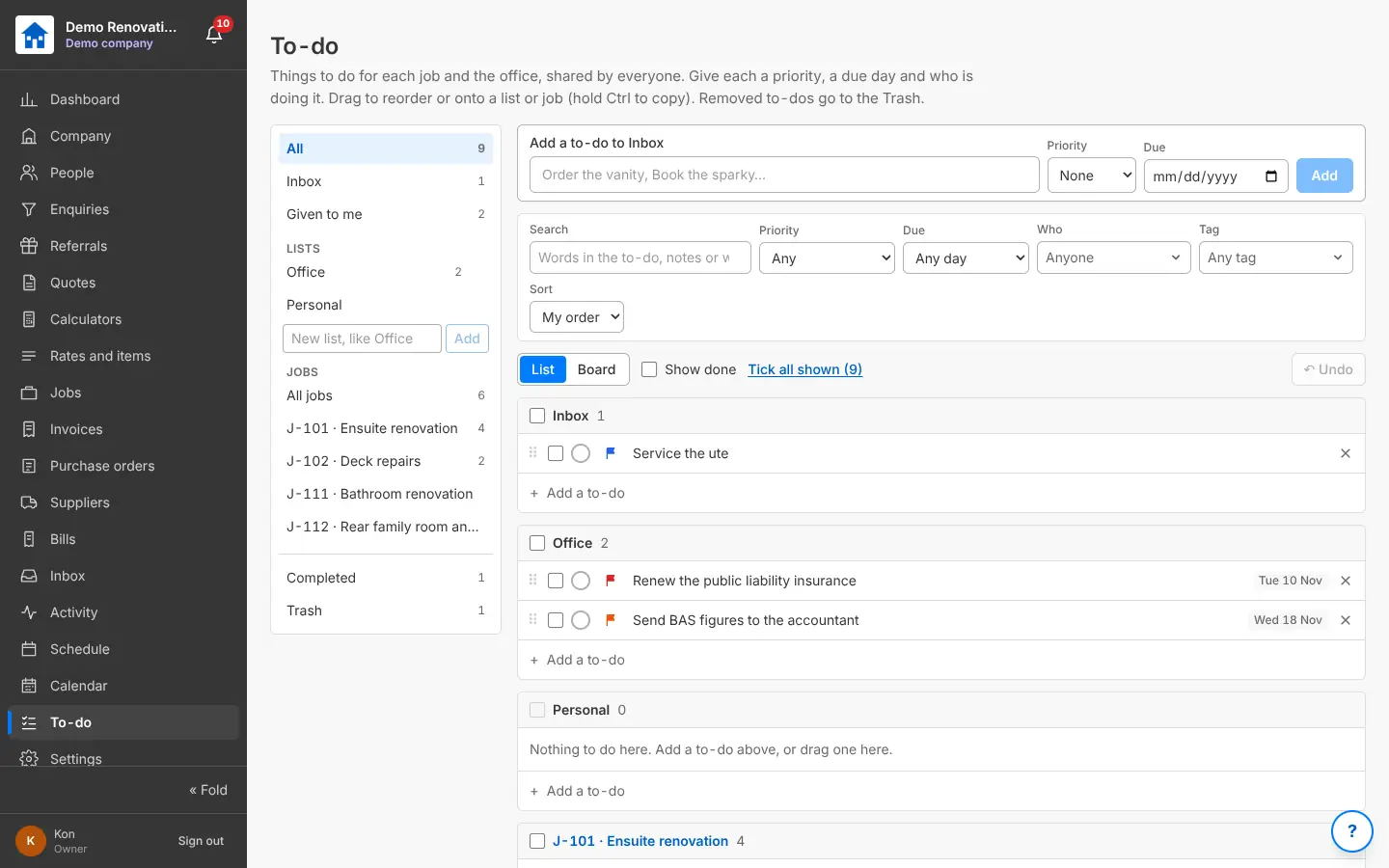
The To-do list with Inbox, Office, Personal and a list per job
To-do: lists for the office, yourself and each job.

The bell, and your phone

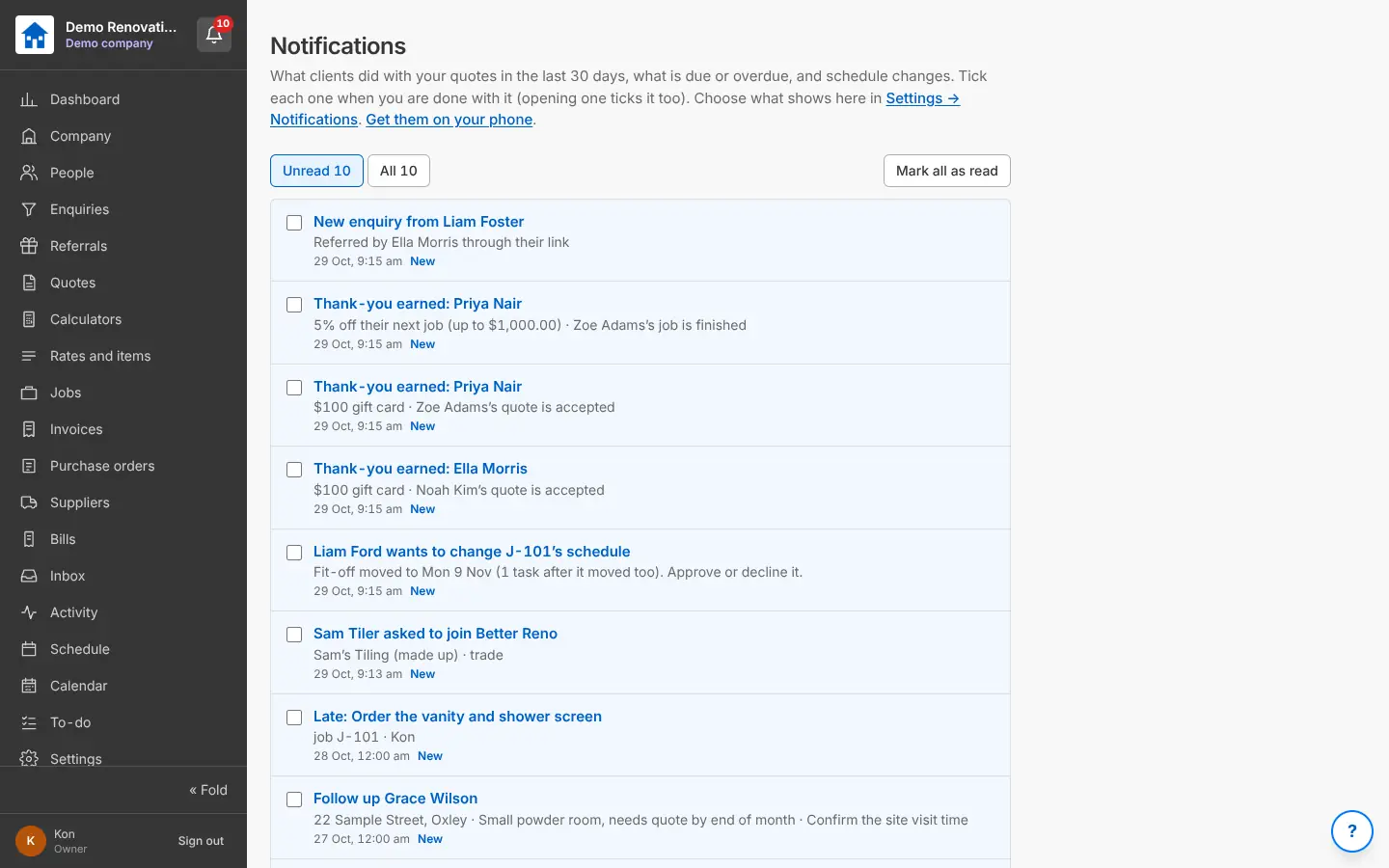
What needs your eye: a new enquiry, a client who opened or approved a quote, a schedule change to approve, a late order, a thank-you earned, invoices and bills due. Choose what goes in the bell and what goes to your phone, with quiet hours at night.

Why it helps: Know the moment a client says yes.

In Better Reno: The bell in the menu · Settings → AI and alerts, You

Better Reno takes care of

  • Works out what needs your eye from what happens: you set nothing up.
  • Sends it to your phone even with Better Reno closed, and stays quiet in your quiet hours.
  • Lets each person choose what goes in their bell and to their phone.
Notifications: new enquiries, thank-yous earned, schedule change requests, late orders
The bell: what needs your eye, on the phone too.

Guides on every screen

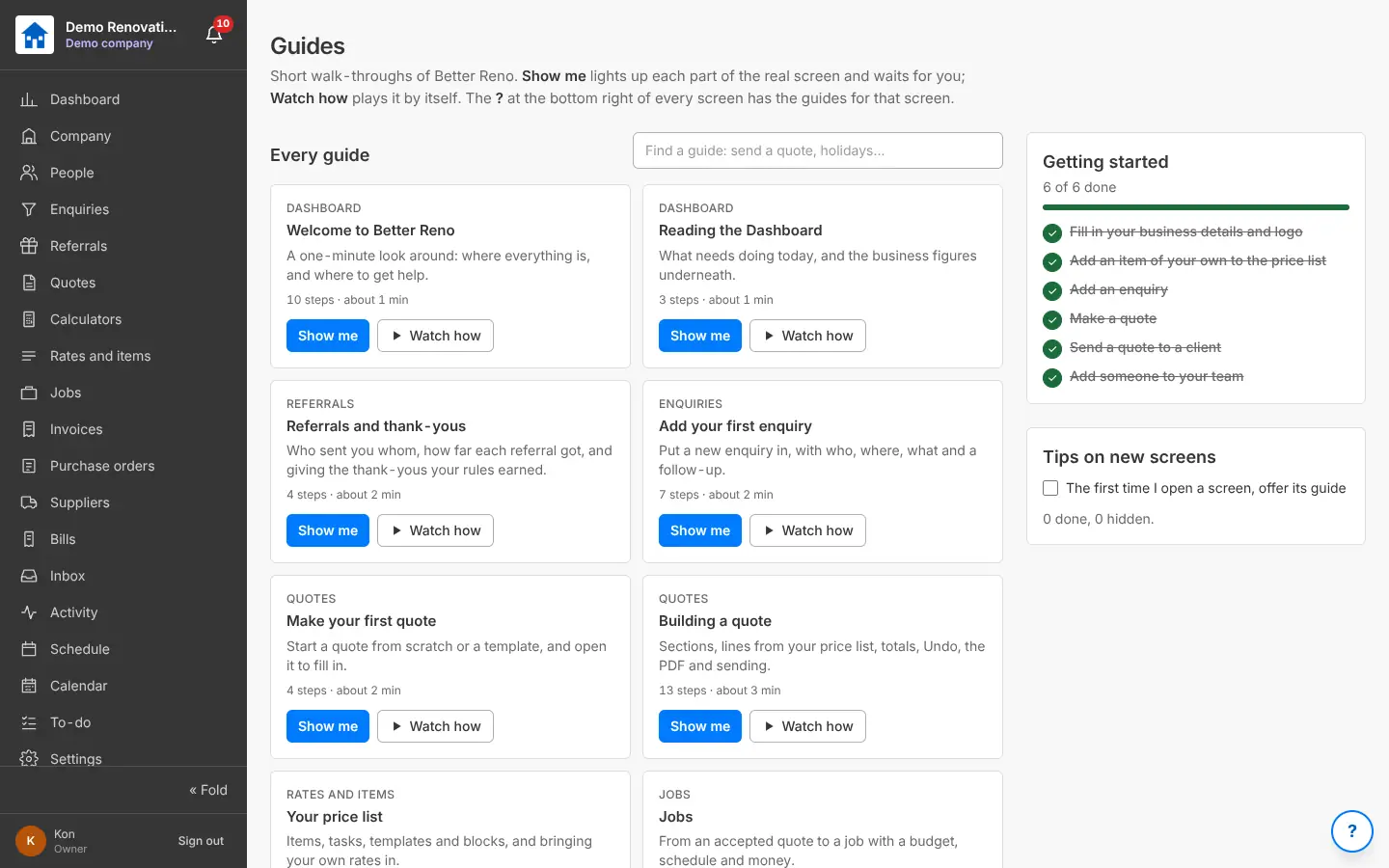
Short walk-throughs of Better Reno: Show me lights up each part of the real screen and waits for you; Watch how plays it by itself. The ? at the bottom of every screen has the guides for that screen, and Getting started ticks off your first steps.

Why it helps: New people learn it without you sitting next to them.

In Better Reno: Side menu → Guides · the ? on every screen

Guide: “How guides work” (Guides in the menu, or the ? on the screen)

Better Reno takes care of

  • Can offer a screen’s guide the first time someone opens it.
  • Shows only the steps a person’s role can use.
  • Ticks off Getting started as you go.
The Guides page with every guide, Show me and Watch how, and Getting started
Guides: Show me, or Watch how.

Settings in groups

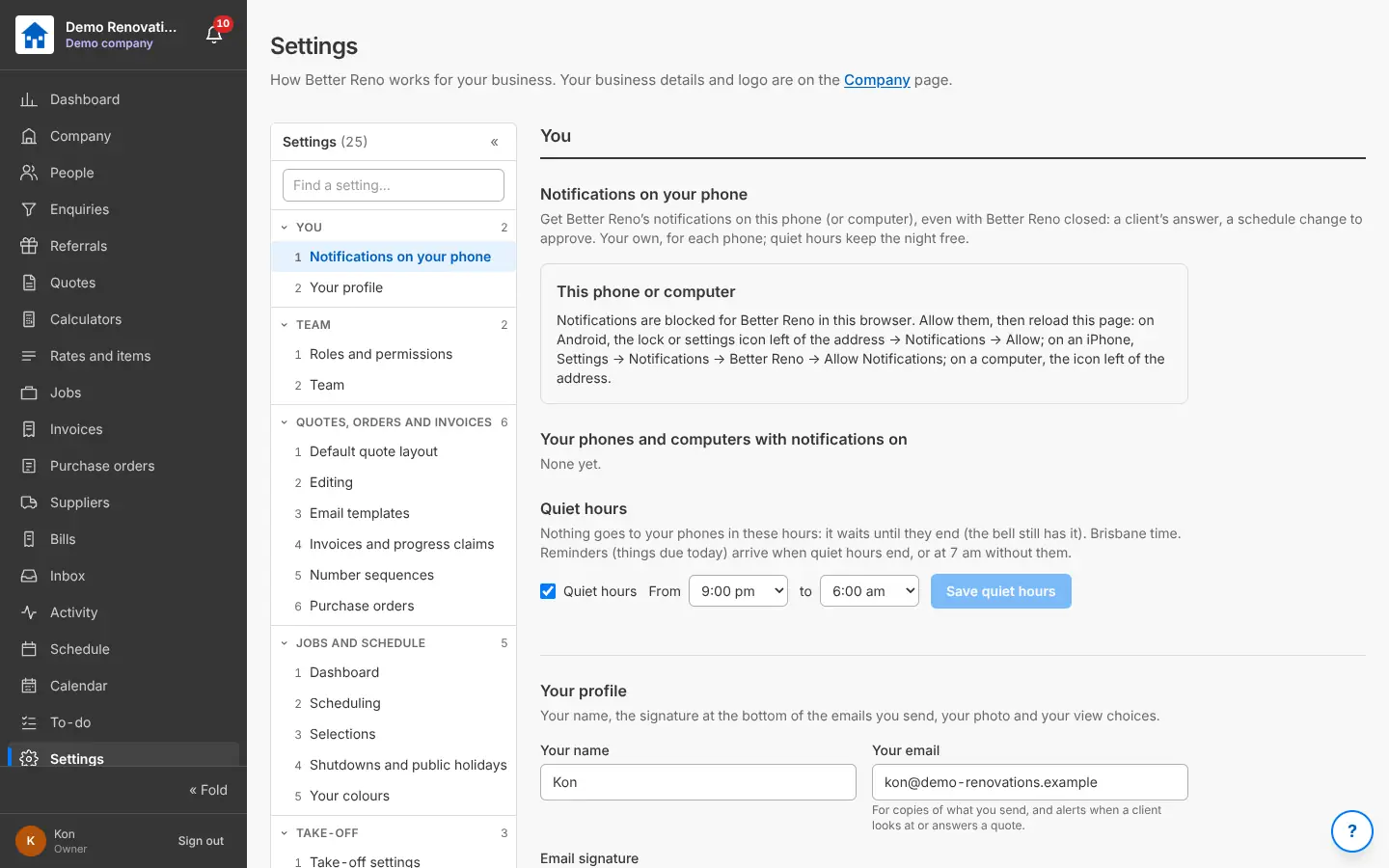
Every setting in eight groups (You, Team, Quotes orders and invoices, Jobs and schedule, Take-off, AI and alerts, Referrals and demo, Files and data), A to Z, with Find a setting… On a phone it opens like the iPhone’s Settings.

Why it helps: Better Reno works the way your business does: every rule is yours to change.

In Better Reno: Side menu → Settings

Guide: “Settings” (Guides in the menu, or the ? on the screen)

Better Reno takes care of

  • Finds a setting by its name or a word you would use (holiday, password, GST, logo).
  • Starts every company with sensible settings, every one of them yours to change.
  • Records every change to a setting in the company’s history.
Settings in groups with Find a setting
Settings in groups, with a search.

Your business details

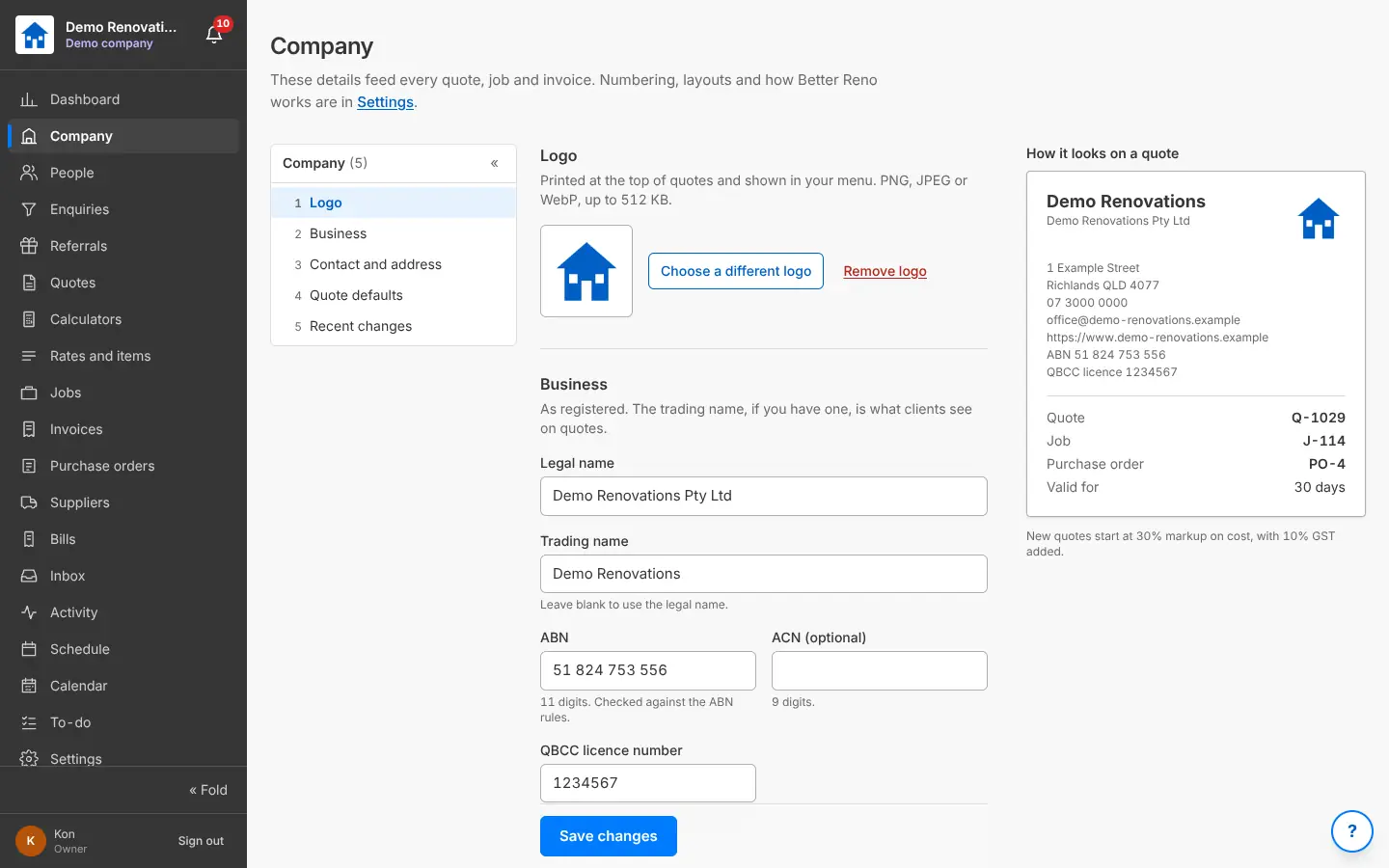
Your logo, legal and trading name, ABN (checked), licence number and contact details: on every quote, order and invoice, with a preview of how it looks.

Why it helps: Every document looks like yours.

In Better Reno: Side menu → Company

Better Reno takes care of

  • Checks the ABN when you type it.
  • Puts your details and logo on every quote, order and invoice by itself.
  • Shows how it looks on a quote as you type.
The Company page: logo, business details, ABN and licence, how it looks on a quote
Your business details, on every quote and invoice.

Your views follow you, on any screen

How you leave a screen (a fold, a filter, a column width, the menu’s order) is kept on your login, so it is the same on the office computer, at home and on your phone. Every screen works on a phone, and lists you can type into to find things.

Why it helps: Set it up once, the way you like it.

In Better Reno: Everywhere · Settings → You → Your profile

Better Reno takes care of

  • Every drop-down of jobs, clients, items or suppliers can be typed into to find things.
  • Long screens get a quick list down the side that jumps to each part.
  • Remembers how you leave each screen, on every computer and phone you use.
  • Works on a phone without scrolling sideways.

What’s coming

The plan for what is built next, in order, kept up to date inside Better Reno (and on this tour’s Coming soon tab).

Why it helps: You can see where it is going.

In Better Reno: Side menu → What’s coming

Better Reno takes care of

  • Kept up to date as each part is built.
  • Shows what was finished last.
  • In the order it will be built.

Would Better Reno suit your business?

Better Reno is used by invited builders for now. Email us about your business and we will set you up with your own company (and a demo to try it on).

Ask for an invite

Opens an email to [email protected]. Nothing is kept on this page.